Headings

Headings are essential building blocks for organizing and structuring your documentation. They help break down your content into clear sections and subsections, making it easy for readers to navigate and understand.
Why to use headings?
- Improve readability Headings guide readers through your content, making it easier to follow the flow of information.
- Enhance visual hierarchy Different heading levels create a clear hierarchy, emphasizing important points.
- Improve SEO Search engines use headings to understand your content's structure, which can help with search rankings.
How to add a heading
You have four ways to add a heading:
WYSIWYG Menu
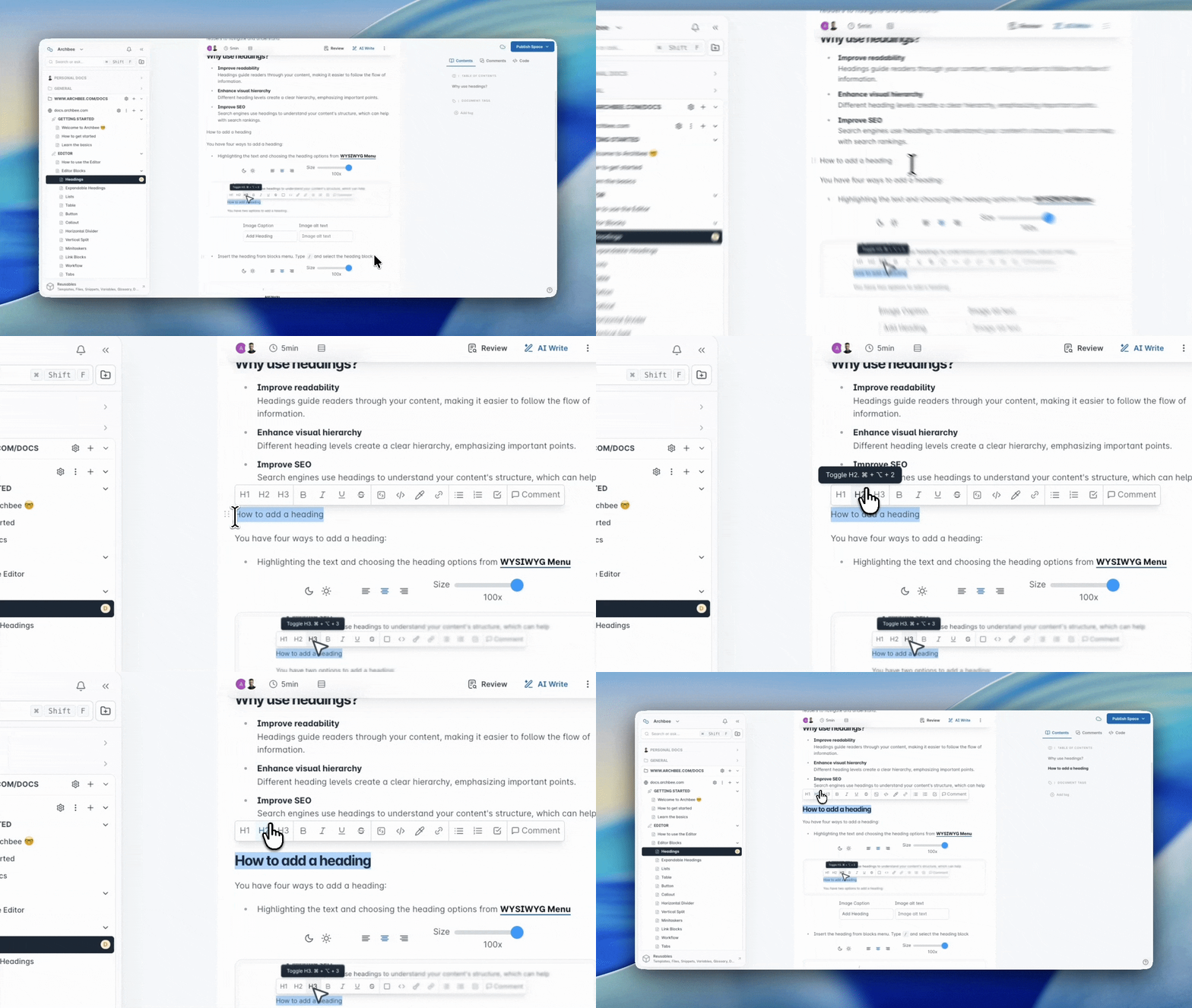
Highlighting the text and choosing the heading options from WYSIWYG Menu
Add Block Menu
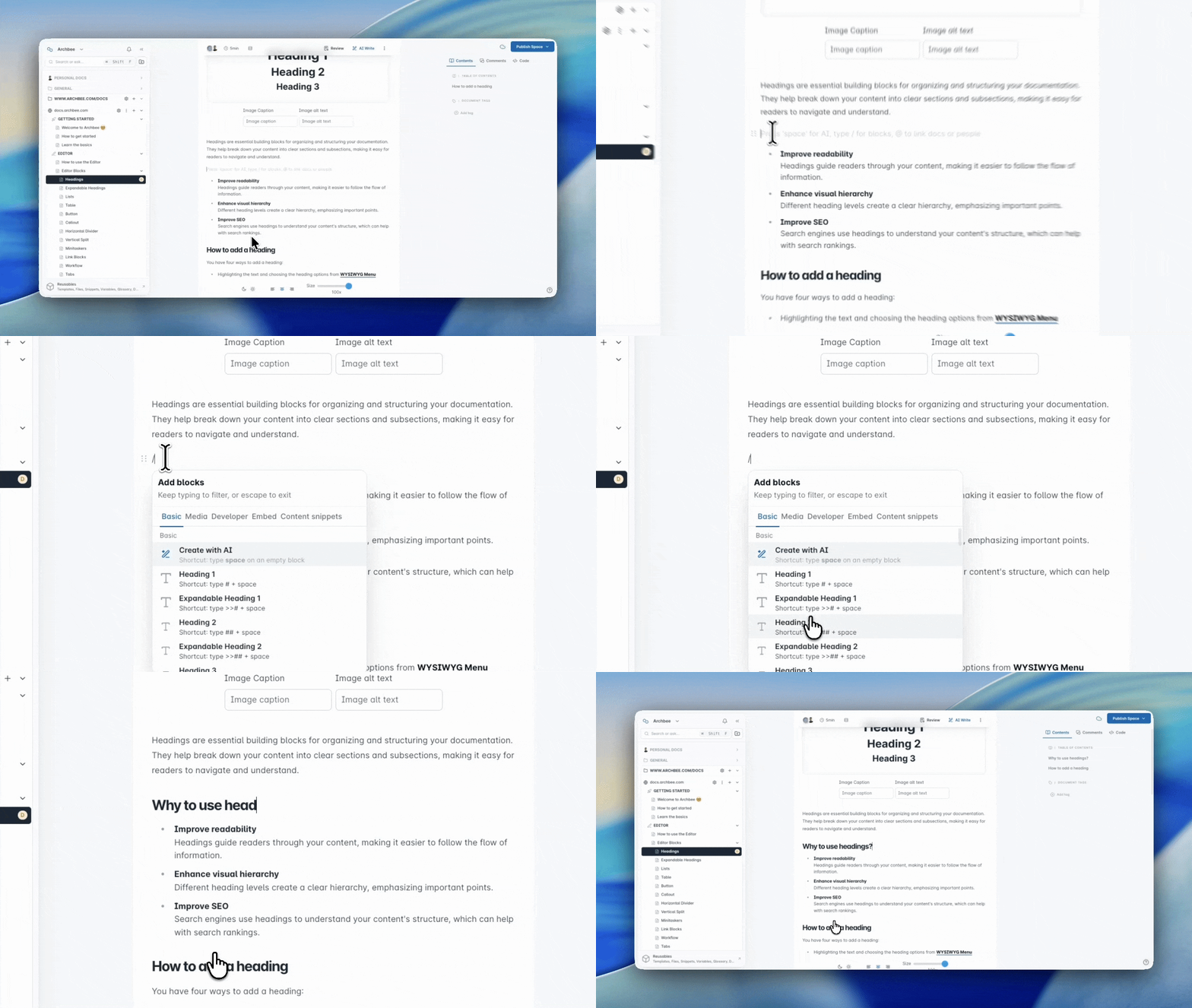
Insert the heading from blocks menu. Type / and select the heading block
Markdown Shorcuts
Use markdown shortcuts to insert it:
- # + space for Heading 1
- ## + space for Heading 2
- ### + space for Heading 3
- Check the Use Markdown shortcuts page for more markdown shortcuts
Keyboard Shorcuts
Using keyboard shortcuts to toggle paragraphs into:
- Heading 1: ⌘ Command + ⌥ Option + 1
- Heading 2: ⌘ Command + ⌥ Option + 2
- Heading 3: ⌘ Command + ⌥ Option + 3
- Check the Editor Keyboard Shortcuts page for more keyboard shortcuts
Customizable Heading Links
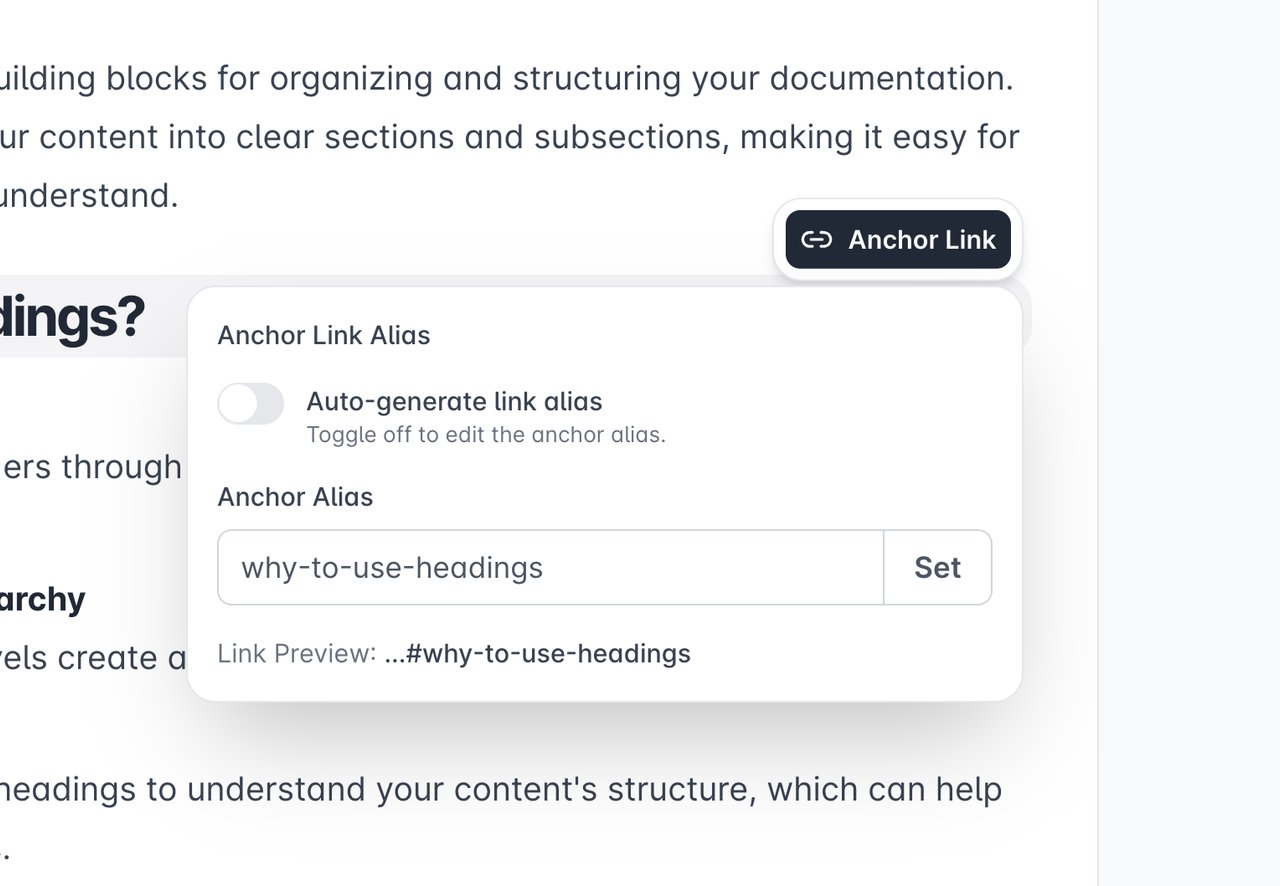
You can assign custom URLs (aliases) to any heading in Archbee, making it easier to share direct links to specific sections of a page.
Below is a clear, step‑by‑step guide:
How to Set a Custom Heading Link
- Hover over the heading you want to link to.
- Click the Anchor Link bubble that appears.
- In the popup, switch Auto-generate off if needed.
- Enter your custom alias (URL-friendly text).
- Press Set.
Why Customize Heading Links?
- Create short, clean, human-readable URLs.
- Establish consistent naming conventions across your documentation.
- Improve navigation for users who need deep-link access.
Be careful when setting custom aliases for heading links. Duplicated aliases can lead to multiple headings or documents sharing the same URL, causing navigation conflicts.

Find other blocks
Discover new ways and blocks to create stunning and functional documentation pages.

Need help? ⬇️
Use the blue chat bubble from bottom right corner.
Or try AI Chat (from search box) for quick answers.

Your opinion matters
Use the below feedback form, anonymously.
Or ask a question in Q&A section and our team or AI will give you a solution.