Button
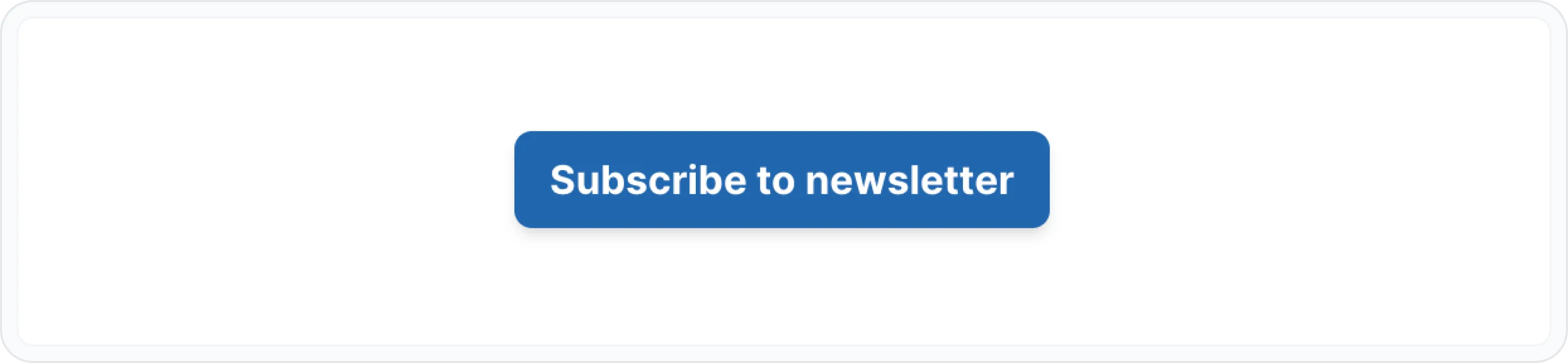
Buttons are the call to action of the digital world. They're those little clickable elements that tell users, "Hey, do this!" Whether it's to learn more, download a file, or purchase something.
Why use a Button block?
- Call to Action Need to encourage users to try something new? A button with a compelling label can do the trick. For example, "Start Your Free Trial" or "Download Now".
- Internal Linking Want to send users to another part of your documentation? A button can seamlessly transport them there.
- External Linking Need to direct users to an external website or resource? A button can be your teleportation device.
How to use a Button block
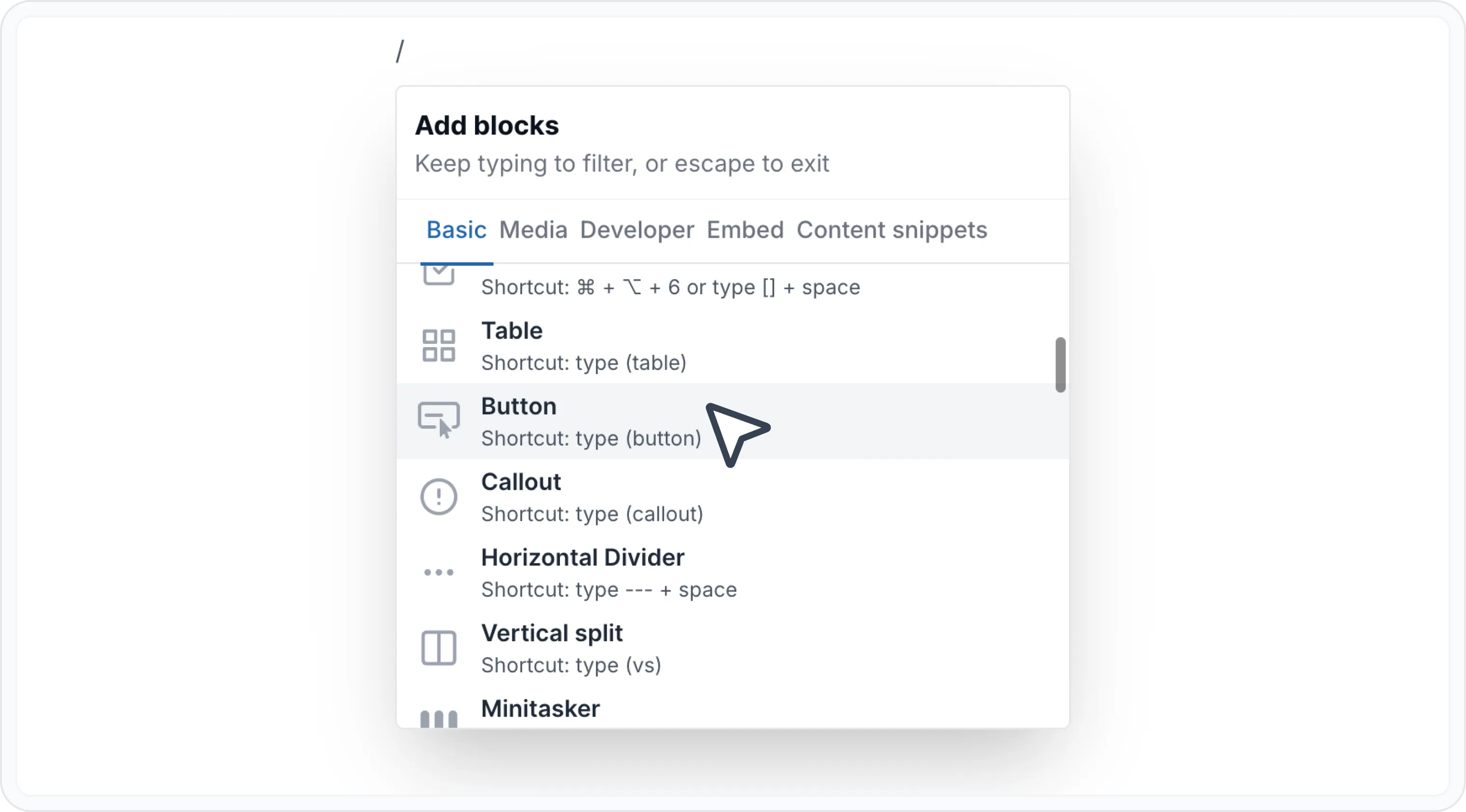
Type / to open Archbee block menu
Search for Button and insert the block
Click on label to rename it
Click on settings (⚙️) icon and configure the action:
- Use as internal link -> to send visitors somewhere else in documentation
- Use as external link -> to open a new website
How to use Buttons as an inline
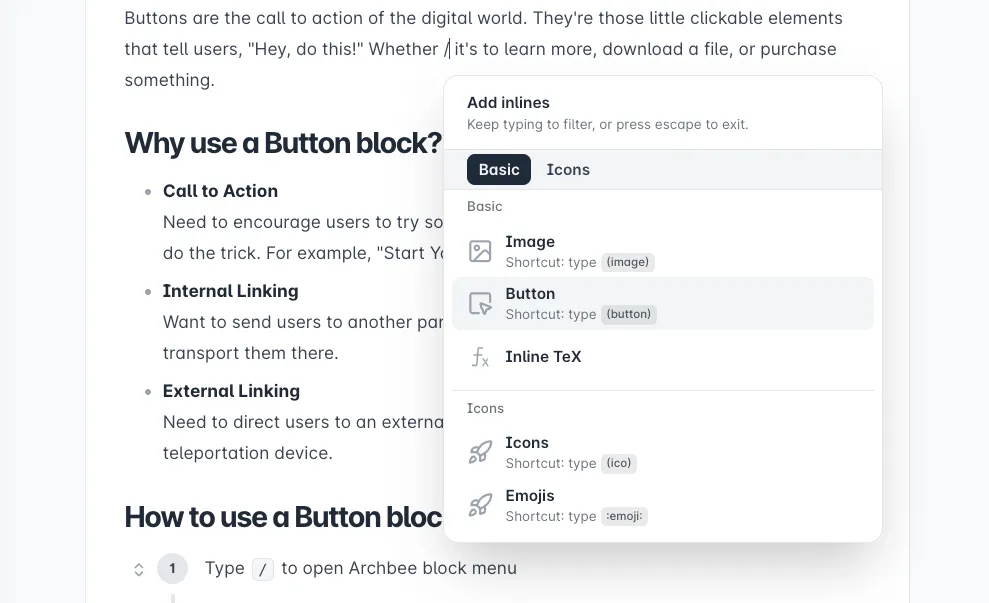
Sometimes you may want a call to action within a sentence instead of as a standalone block. Archbee supports directly inside paragraph text.
Here’s how you can quickly add one without breaking the flow of your content:
Place your cursor in the middle of any paragraph.
Press / to open the command menu.
Search for Button and select it.
Example
Here is an example to show how you can use use the button:
Receive documentation and technical writing tips & trends — our newsletter
Join 5000+ people from around the world that receive a monthly edition of the Archbee Blog Newsletter.

Find other blocks
Discover new ways and blocks to create stunning and functional documentation pages.
Editor BlocksEditor Blocks

Need help? ⬇️
Use the blue chat bubble from bottom right corner.
Or try AI Chat (from search box) for quick answers.

Your opinion matters
Use the below feedback form, anonymously.
Or ask a question in Q&A section and our team or AI will give you a solution.