Find & Replace
Quickly locate and update text across your documentation with the Find & Replace feature. A simple, powerful feature that helps you maintain consistency and accuracy across your documentation.
How to access it
Below are the places where you can open Find & Replace depending on where you are working:
- In the document menu Open the three-dots menu inside the editor to access Find & Replace.
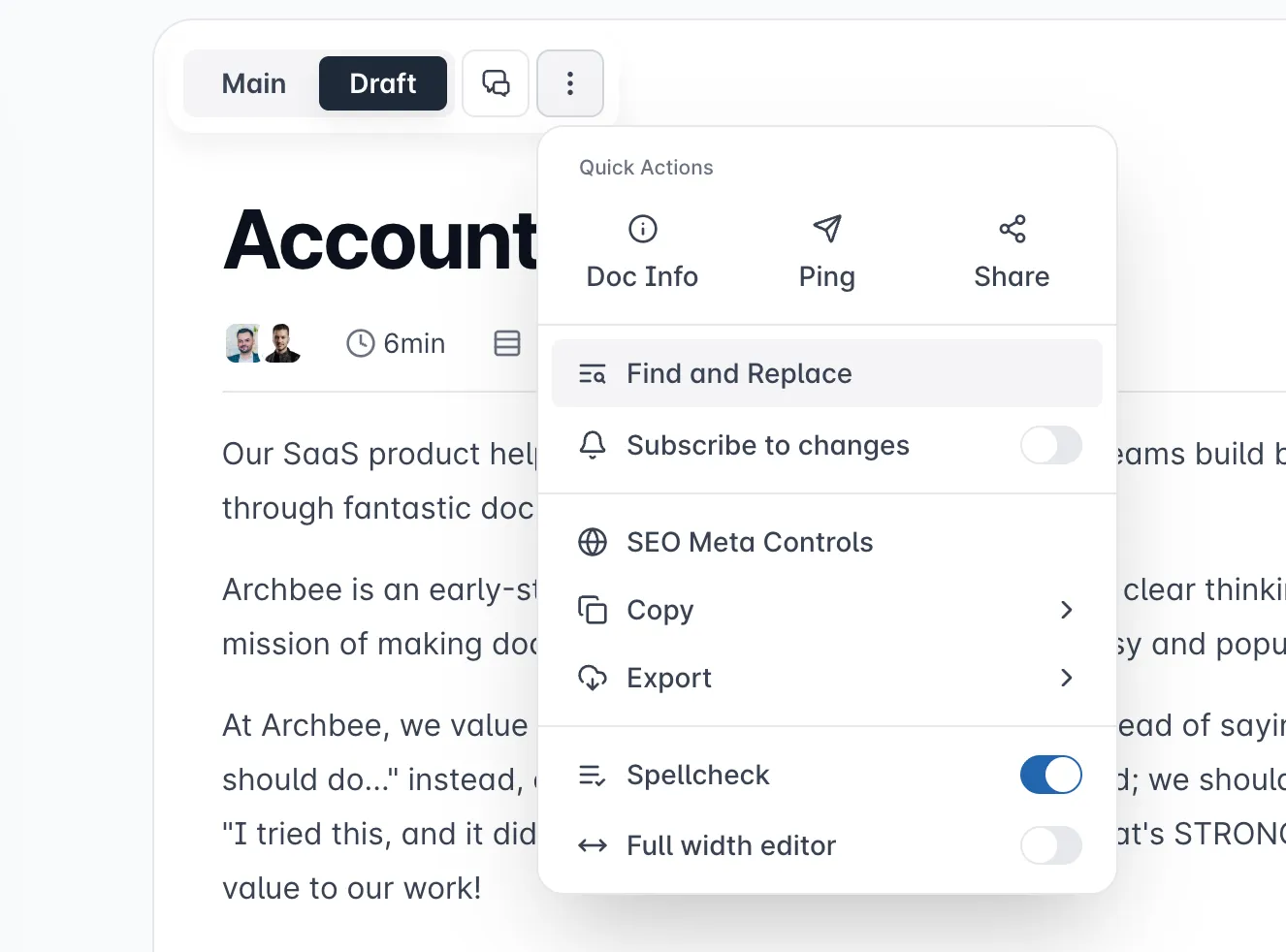
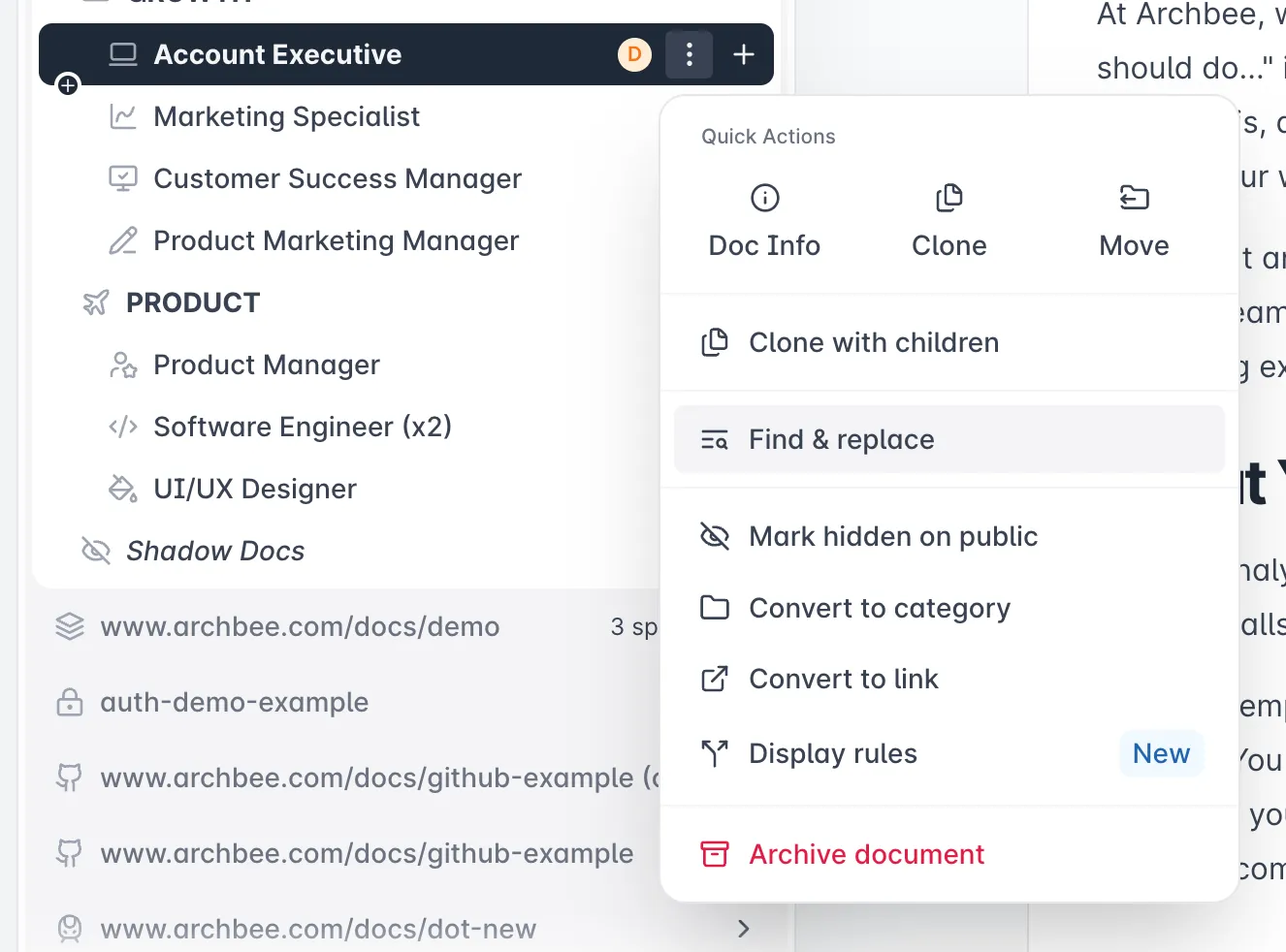
- In the side panel navigation Use the three-dots menu next to a document in the navigation panel.
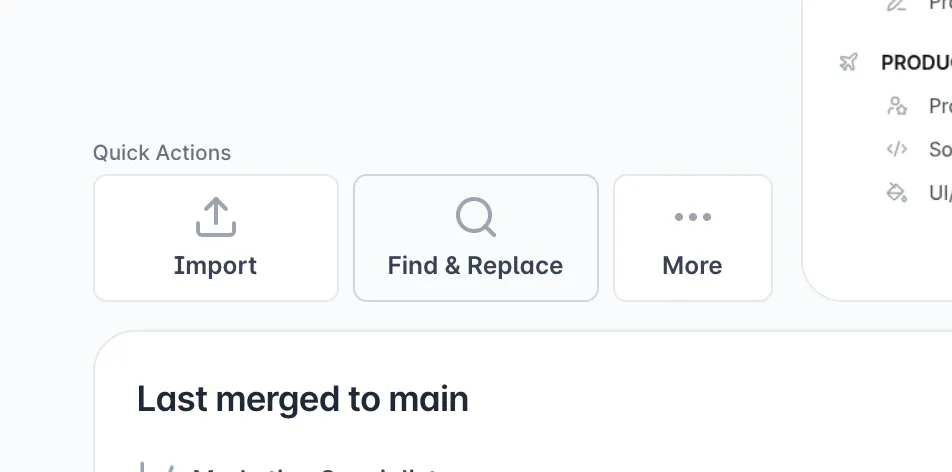
- In the Space Overview page Open the Space Dashboard to see the Find & Replace button. Available only for Free Edits and Draft & Reviews SystemDrafts & Reviews edit modes.
How it works
The Find & Replace feature helps you search for text and update it globally with precision. Here's the workflow:
Type your word or phrase. We automatically search and display preliminary findings, including the number of matches.
You can fine‑tune your search using:
- Match Case – Finds only text with the exact same capitalization. For example, searching "API" will not match "api".
- Whole Words – Matches only complete words. Searching for "cat" will ignore words like "catalog".
- Include children – Extends the search to all child documents under the current document. Useful for updating entire document branches.

Choose your scope, such as a specific block type. By default, all text-based blocks are
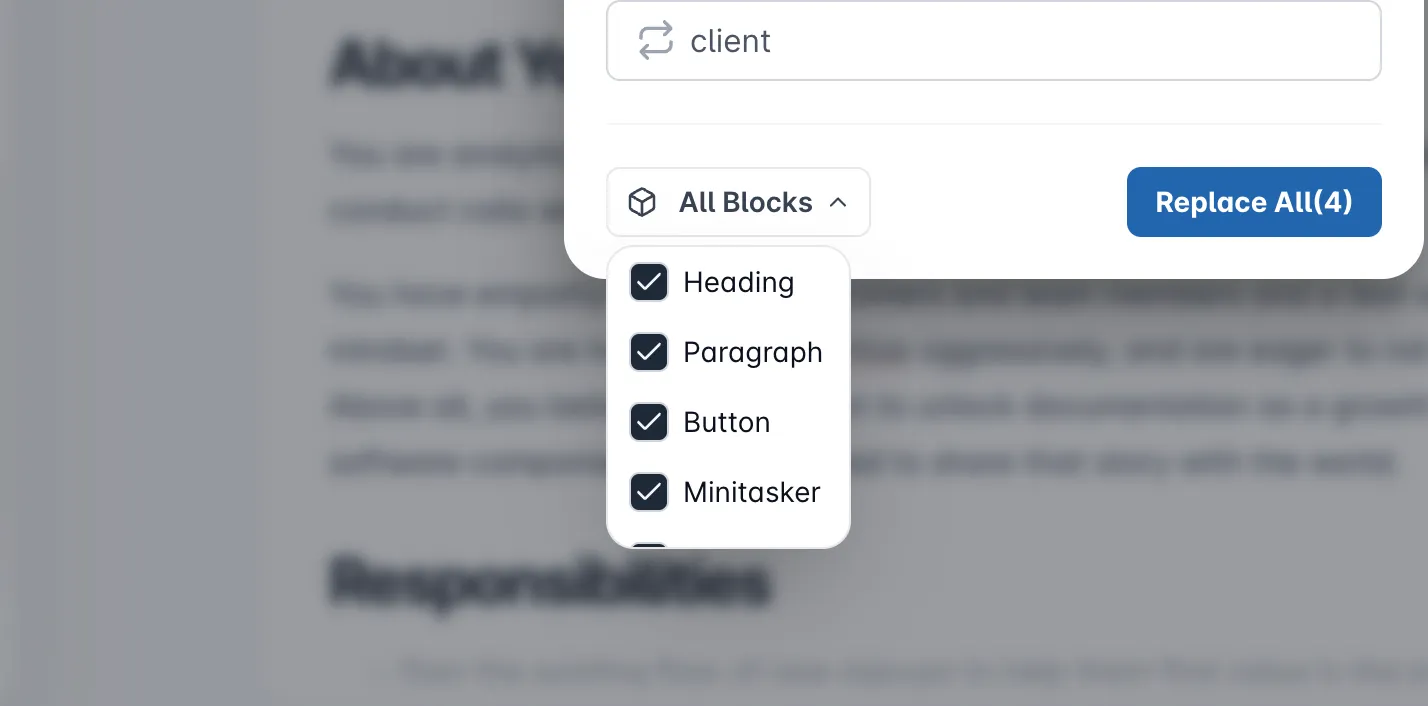
Click Replace or Replace All to apply changes.
Variables and Glossary in Find & Replace
The Find & Replace tool also works seamlessly with Reusable variablesReusable variables and GlossaryGlossary terms.
To search for or replace a variable or glossary entry, simply type it using the standard syntax:
- {{variableName}}
- {{glossaryTerm}}
You can:
- Search for a variable or glossary term and replace it with another.
- Replace standard text with a variable or glossary reference.
- Or perform the reverse: replace a variable or glossary reference with plain text.
This allows you to quickly refactor naming conventions, update reusable content, and ensure consistent terminology across your documentation.