Table
Sometimes, lists aren't enough to convey the information that you want. Thus the reason for editable tables.
Table allows you to structure and present information in a clear, organized, and visually appealing format. It's perfect for displaying data in rows and columns, making it easy to compare, analyze, and understand.
When use a table
Tables are ideal when your content:
Has repeated patterns (e.g., attributes, features, data points)
Needs comparison (pricing, plans, specs)
Benefits from horizontal scanning
How to add a table
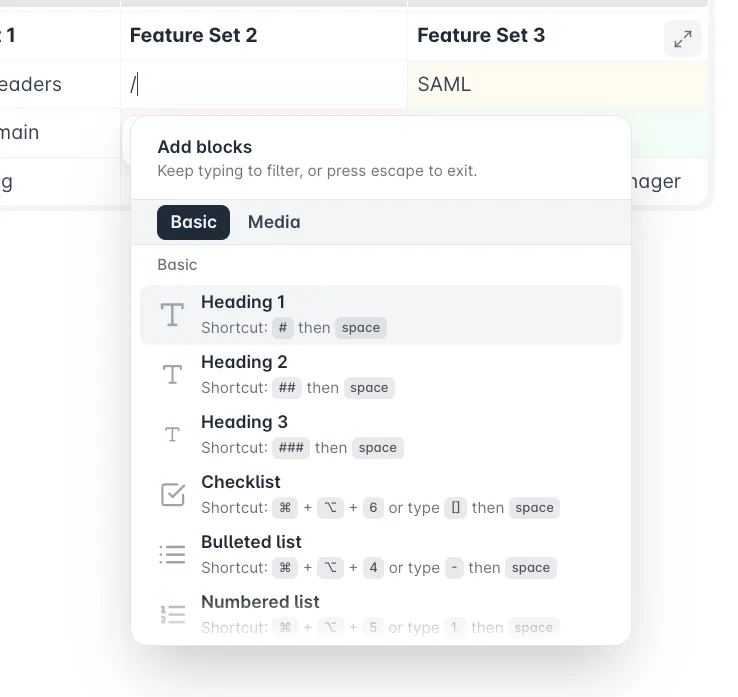
Type / to open the block list menu
Search for Table and click on it to insert
A basic 3x4 table having the first row as header will be created
Alternalely directly insert a table, simply type (table).
| | |
|---|---|---|
| | |
| | |
| | |
Understanding the table controls
Every table has interactive controls that appear when you click the handles, cells or margins.
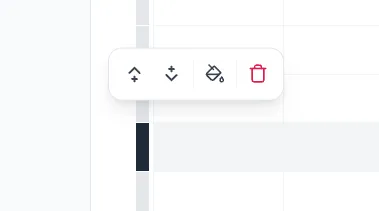
Row handle (left side)
Each row has its individual handle. You can use it to:
- Add row to above or below ;
- Change background color ;
- Delete row ;
Column handle (top side)
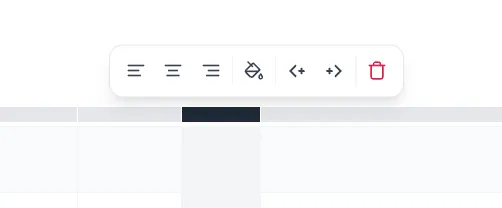
Each column has its individual handle. You can use it to:
- Align content to left , centre or right ;
- Change background color ;
- Add column to left or right ;
- Delete row
Corner dot (upper‑left)
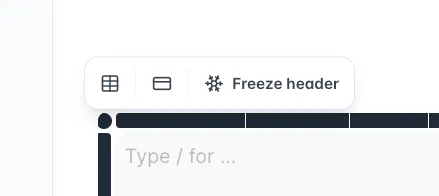
Used for whole‑table actions such as:
- Change border color ;
- Show first row as table header ;
- Freezing headers ;
Cell popup menu
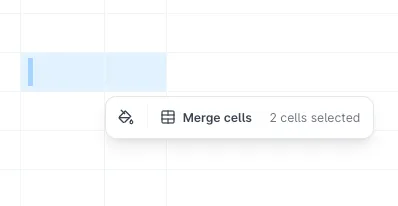
Appears when you click inside a cell or select multiple cells. Gives access to:
- Merge cells ;
- Split cells ;
- Change background color ;
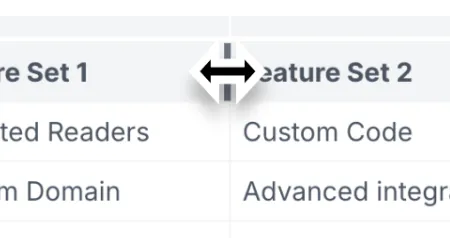
Resize a column - adjust the cell width
Column resizing lets you control how much space each column takes.
Hover your cursor over the right edge or left edge of a column and click & drag to adjust the widht.
Editing cell content
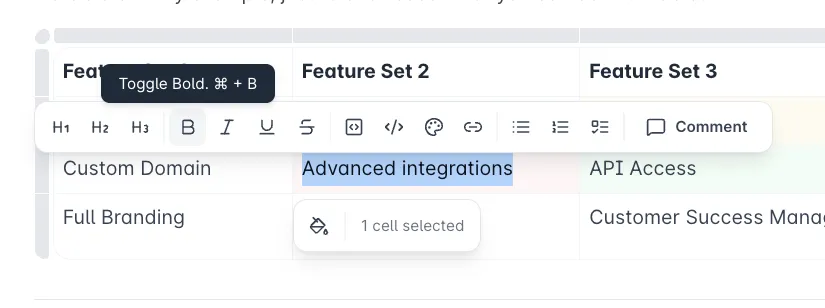
Every cell in a table is its own mini editor. You can type, format, and structure content exactly like you would in any normal block, no special tools or steps required. Simply click inside a cell and begin typing.
Selecting a text will trigger the WYSIWYG Menu to appear, giving you access to bold, italics, inline code, links, and any other basic formatting you normally use.
Cells also support inserting blocks. Here are the available in‑cell blocks you can use:
- Headings
- Lists
- Images
These are the only block types supported inside table cells.
Full‑screen editing mode
When a table becomes large or visually complex, the in‑page editor can feel cramped.
The Full‑Screen Editing Mode gives you a dedicated editor especially for managing large datasets and wide tables, benefiting all:
- See more columns at once without having to scroll horizontally.
- Work with large row counts in a smoother, distraction‑free space.
- Add, remove, or rearrange rows and columns with less visual clutter.
- Avoid page reflow — the rest of the document stays out of the way.
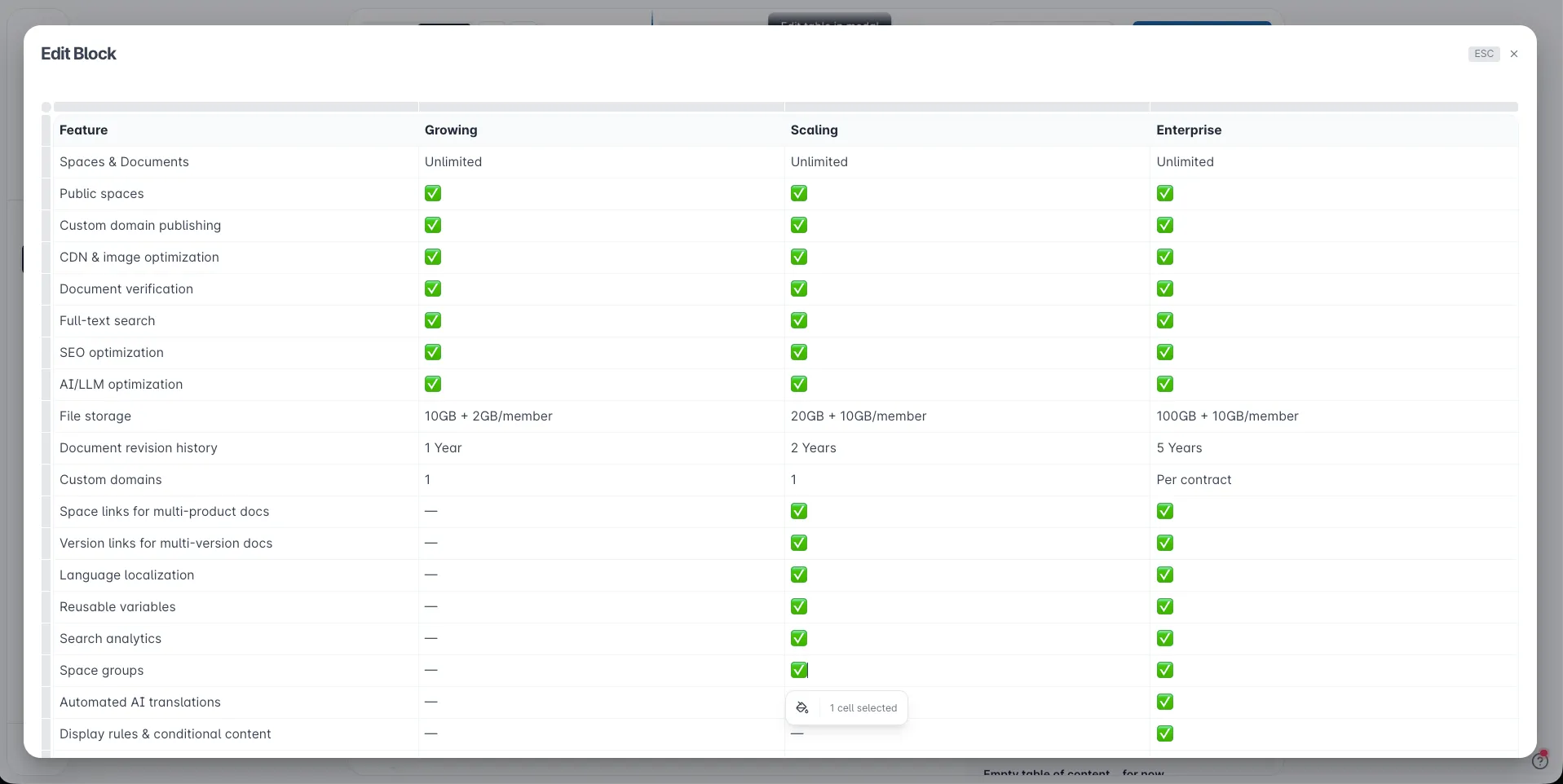
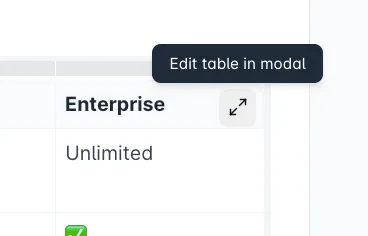
To open Open full‑screen mode, clicking the expand icon the upper‑right corner.
To close, simply press on esc key or button, or click outside.
Every change is automalitcally saved.
Here is a table example, using frozen headers:
Feature | Growing | Scaling | Enterprise |
|---|---|---|---|
Spaces & Documents | Unlimited | Unlimited | Unlimited |
Public spaces | ✅ | ✅ | ✅ |
Custom domain publishing | ✅ | ✅ | ✅ |
CDN & image optimization | ✅ | ✅ | ✅ |
Document verification | ✅ | ✅ | ✅ |
Full-text search | ✅ | ✅ | ✅ |
SEO optimization | ✅ | ✅ | ✅ |
AI/LLM optimization | ✅ | ✅ | ✅ |
File storage | 10GB + 2GB/member | 20GB + 10GB/member | 100GB + 10GB/member |
Document revision history | 1 Year | 2 Years | 5 Years |
Custom domains | 1 | 1 | Per contract |
Space links for multi-product docs | — | ✅ | ✅ |
Version links for multi-version docs | — | ✅ | ✅ |
Language localization | — | ✅ | ✅ |
Reusable variables | — | ✅ | ✅ |
Search analytics | — | ✅ | ✅ |
Space groups | — | ✅ | ✅ |
Automated AI translations | — | — | ✅ |
Display rules & conditional content | — | — | ✅ |
Readers & traffic | Unlimited | Unlimited | Unlimited |
Password authentication | ✅ | ✅ | ✅ |
Guest accounts | — | ✅ | ✅ |
Magic links | — | ✅ | ✅ |
JWT | — | ✅ | ✅ |
SAML | — | — | ✅ |
Full‑Screen viewing mode for readers
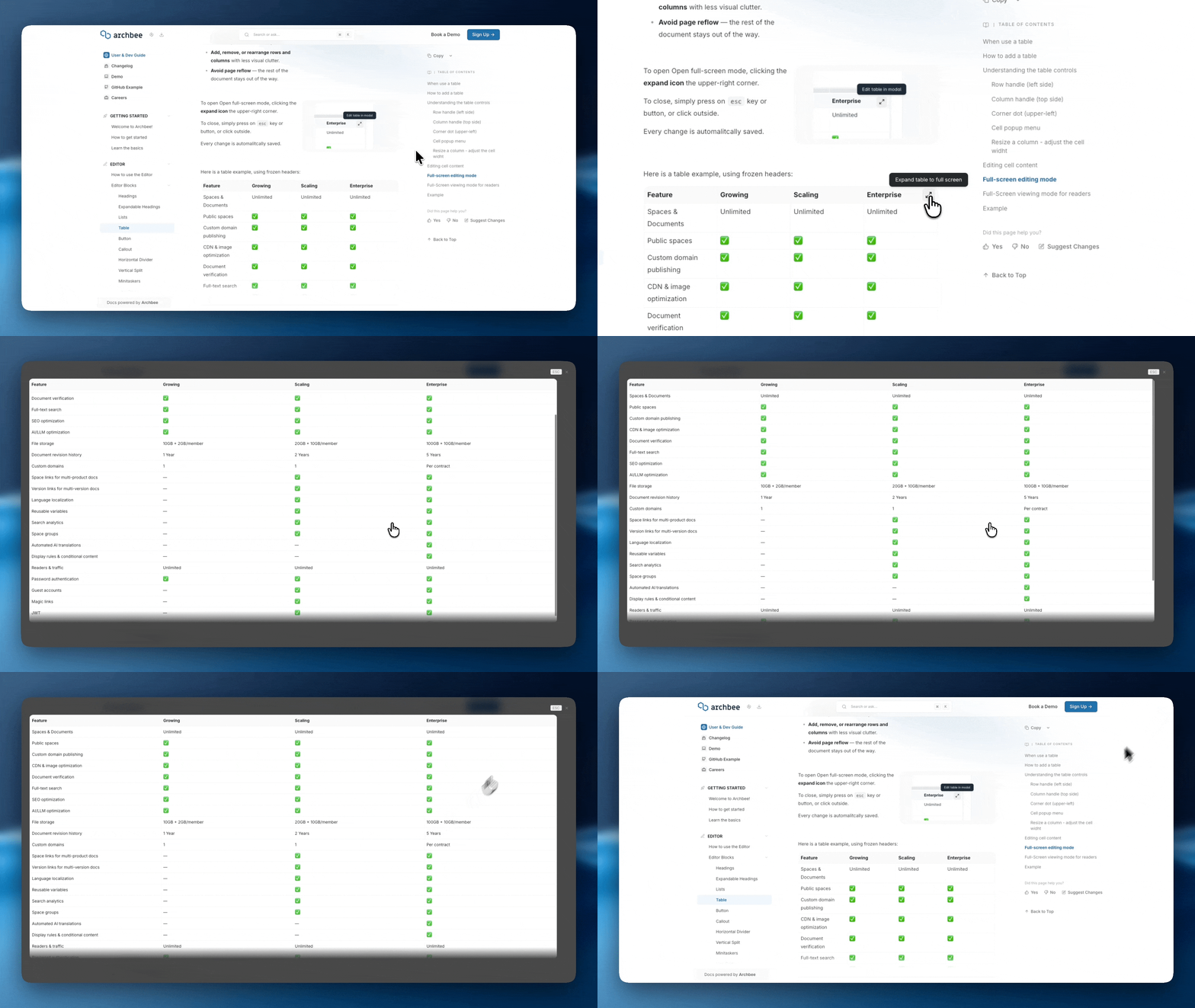
Readers can enlarge any table by clicking the expand icon.
The table opens in a large, scrollable modal that removes page constraints, making wide or data‑heavy tables far easier to read.
Example
Here's a another example, just to showcase what you can do with tables:
Feature Set 1 | Feature Set 2 | Feature Set 3 |
|---|---|---|
Unlimited Readers |  | SAML |
Custom Domain | Advanced integrations | API Access |
Full Branding | Custom Code | Customer Success Manager |

Find other blocks
Discover new ways and blocks to create stunning and functional documentation pages.

Need help? ⬇️
Use the blue chat bubble from bottom right corner.
Or try AI Chat (from search box) for quick answers.

Your opinion matters
Use the below feedback form, anonymously.
Or ask a question in Q&A section and our team or AI will give you a solution.