WYSIWYG Menu
2 min
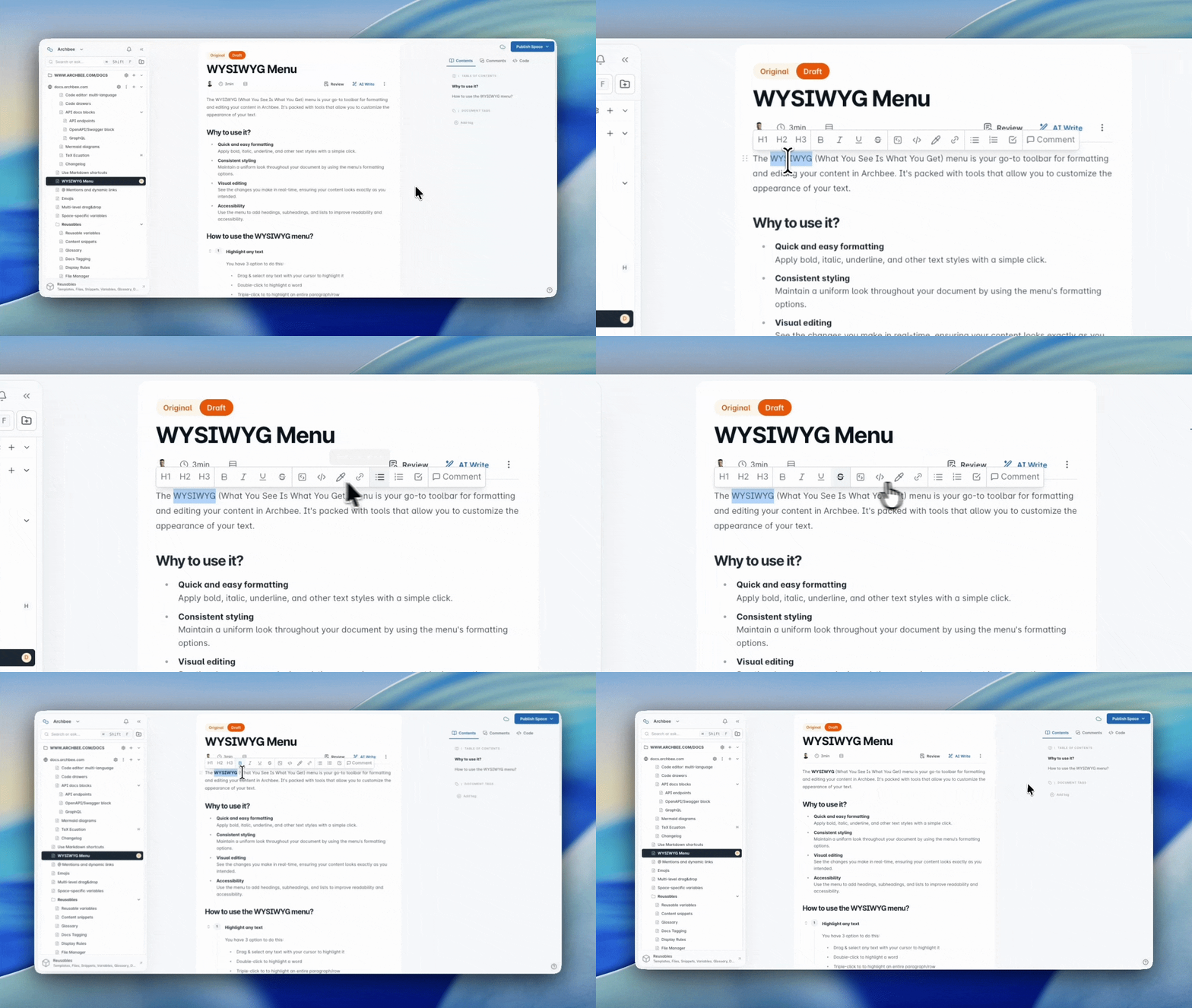
The WYSIWYG (What You See Is What You Get) menu is your go-to toolbar for formatting and editing your content in Archbee. It's packed with tools that allow you to customize the appearance of your text.
Why to use it?
- Quick and easy formatting Apply bold, italic, underline, and other text styles with a simple click.
- Consistent styling Maintain a uniform look throughout your document by using the menu's formatting options.
- Visual editing See the changes you make in real-time, ensuring your content looks exactly as you intended.
- Accessibility Use the menu to add headings, subheadings, and lists to improve readability and accessibility.
How to use the WYSIWYG menu?
Highlight any text
You have 3 option to do this:
- Drag & select any text with your cursor to highlight it
- Double-click to highlight a word
- Triple-click to to highlight an entire paragraph/row
The WYSIWYG menul will appear above the highlighted text. From here you have the option to change the text into:
- Heading 1
- Heading 2
- Heading 3
- Bold
- Italic
- Underline
Strike
- Code Paragraph
- Text Code
- Text Color
- Links
- Bullet list
- Number list
Check list
Check here more about lists.
You can also add inline comments on the highlighted text. Check here for more details.
ℹ️ Note
You can choose to have links open in the same tab or a new tab, based on your preference.
Have a question?
Our super-smart AI, knowledgeable support team and an awesome community will get you an answer in a flash.
To ask a question or participate in discussions, you'll need to authenticate first.