Public Access Controls
By default, a public Space does not have any authentication method, but you can choose and set a few:
- Space-wide password;
- Guest Accounts, where you manually create email + password combos and distribute them to your users;
- Magic Links, where you enter specific emails or entire domains, and users will authenticate using a link that we send to their email address;
- Private Accounts, where you add specific domains to let users authenticate/create accounts with their e-mail address
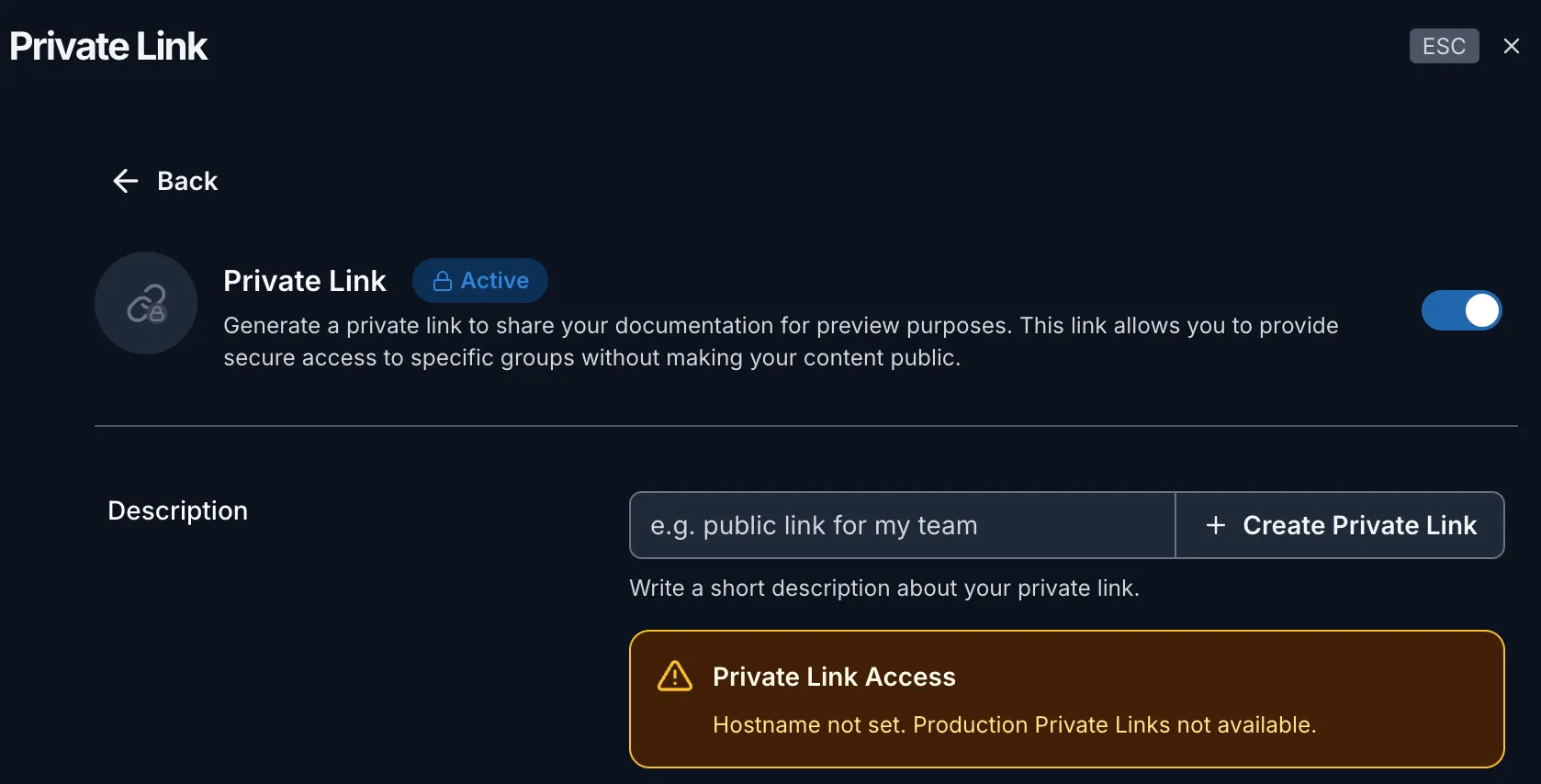
- Private Links, where you can generate private links and share them with your users and teams. Manage access control per user group via links;
- JWT, where your dev team generates a JWT with a secret key you provide in our UI, then pass it back to us as part of a link. This is the easiest to manage, but you will require developer time.
- SAML, when you have an external application that can act as a router to your space domain, so the public portal can be acessed only by members setted in providers like Google, Azure, Okta.
None
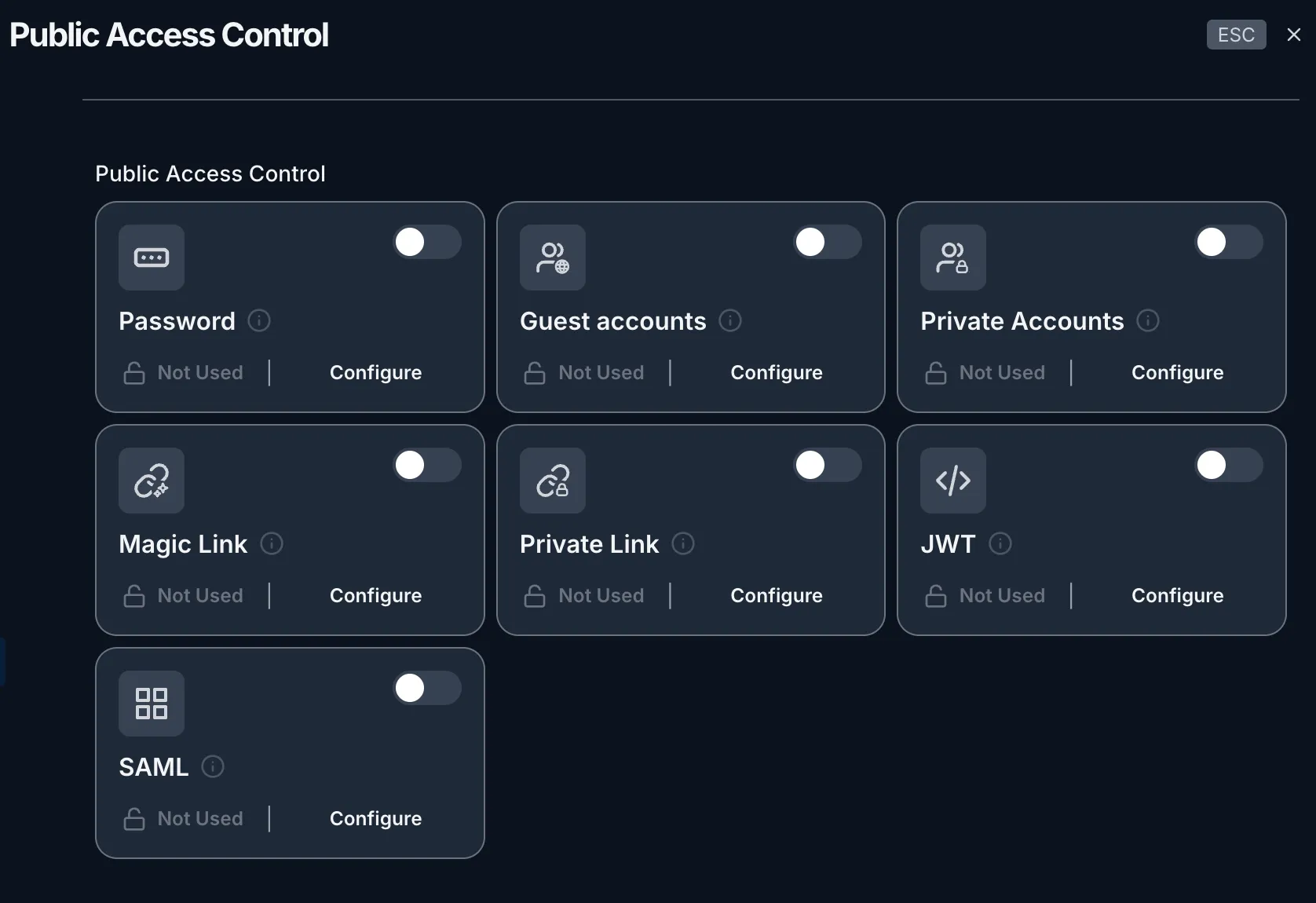
The default behaviour is set as None, meaning it is available publicly. You can change to controls to limit the access for readers.
Everyone with the link will be able to read content.
Links are safe to share because they are cryptographically generated and unguessable.
When you want to gate the contents to specific readers, try any of the options below.
Guest Accounts
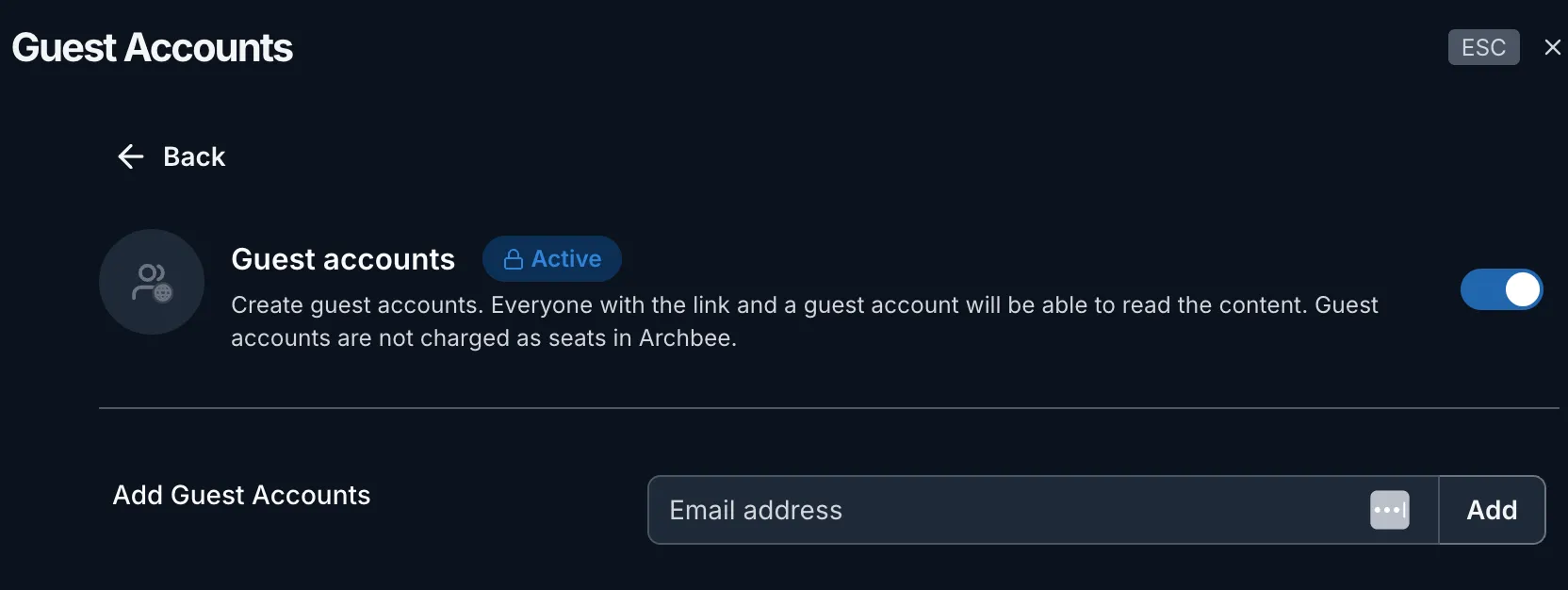
Create guest accounts. Everyone with the link and a guest account will be able to read the content. Guest accounts are not charged as seats in Archbee.
Private Accounts
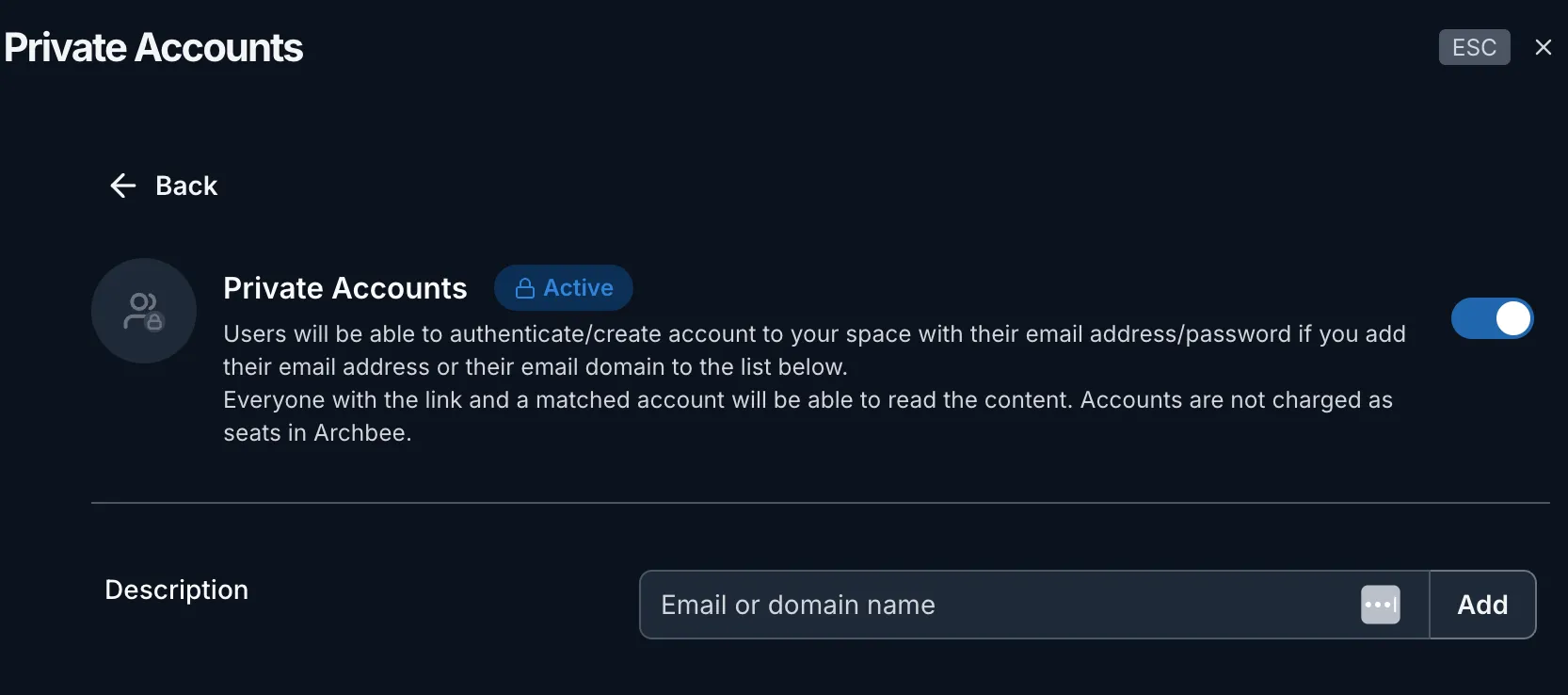
Users will be able to authenticate/create an account in your space with their email address/password if you add their email address or their email domain to the list below.
Everyone with the link and a matched account will be able to read the content. Accounts are not charged as seats in Archbee.
The list of users with active accounts will appear in the 'Active Accounts' window.
Magic Link
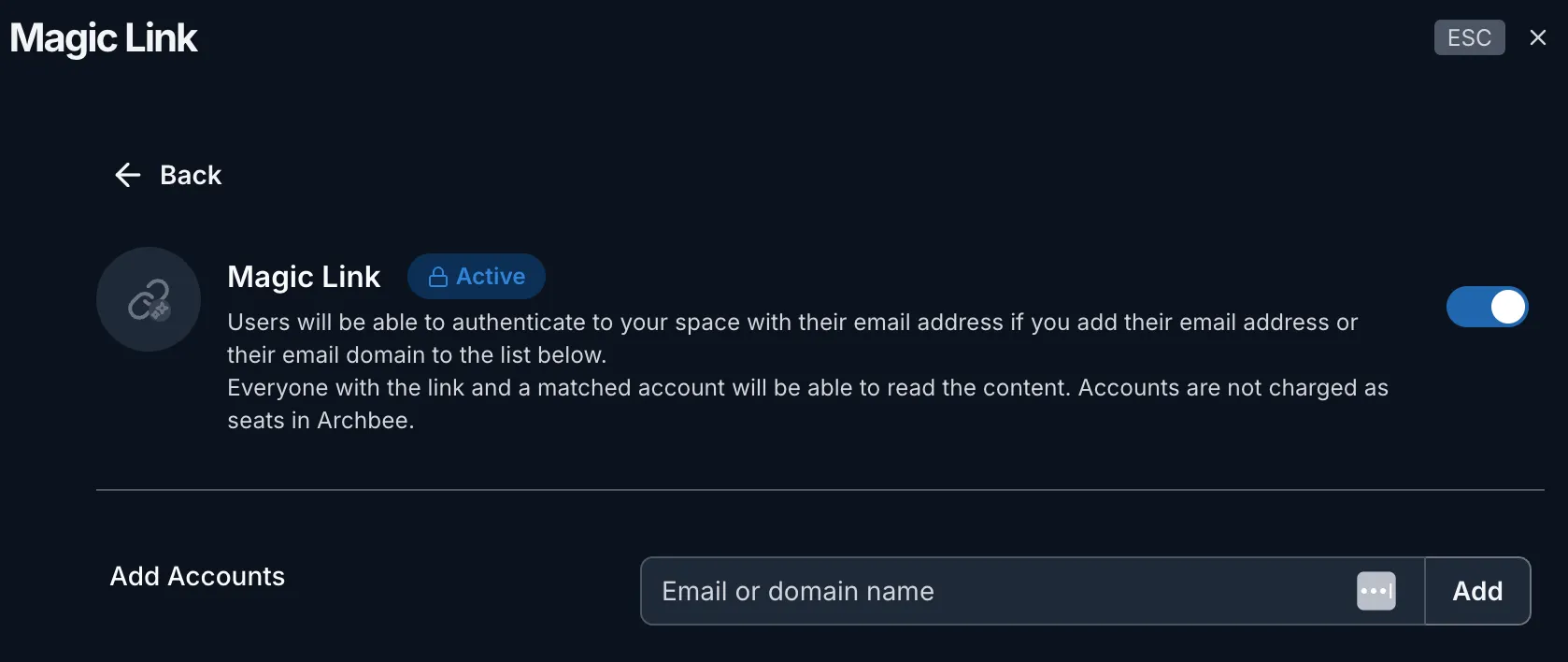
Users will be able to authenticate to your space with their email address if you add their email address or their email domain to the list below. Everyone with the link and a matched account will be able to read the content. Accounts are not charged as seats in Archbee.
Private links
Generate Private links for specific user groups/teams. Each user group/team will have their own link to the same documentation and you can manage access control via this links. You need to cut access for team 1? Delete the private link associated with team 1.
How JWT works
JWT - secret visitor authentication
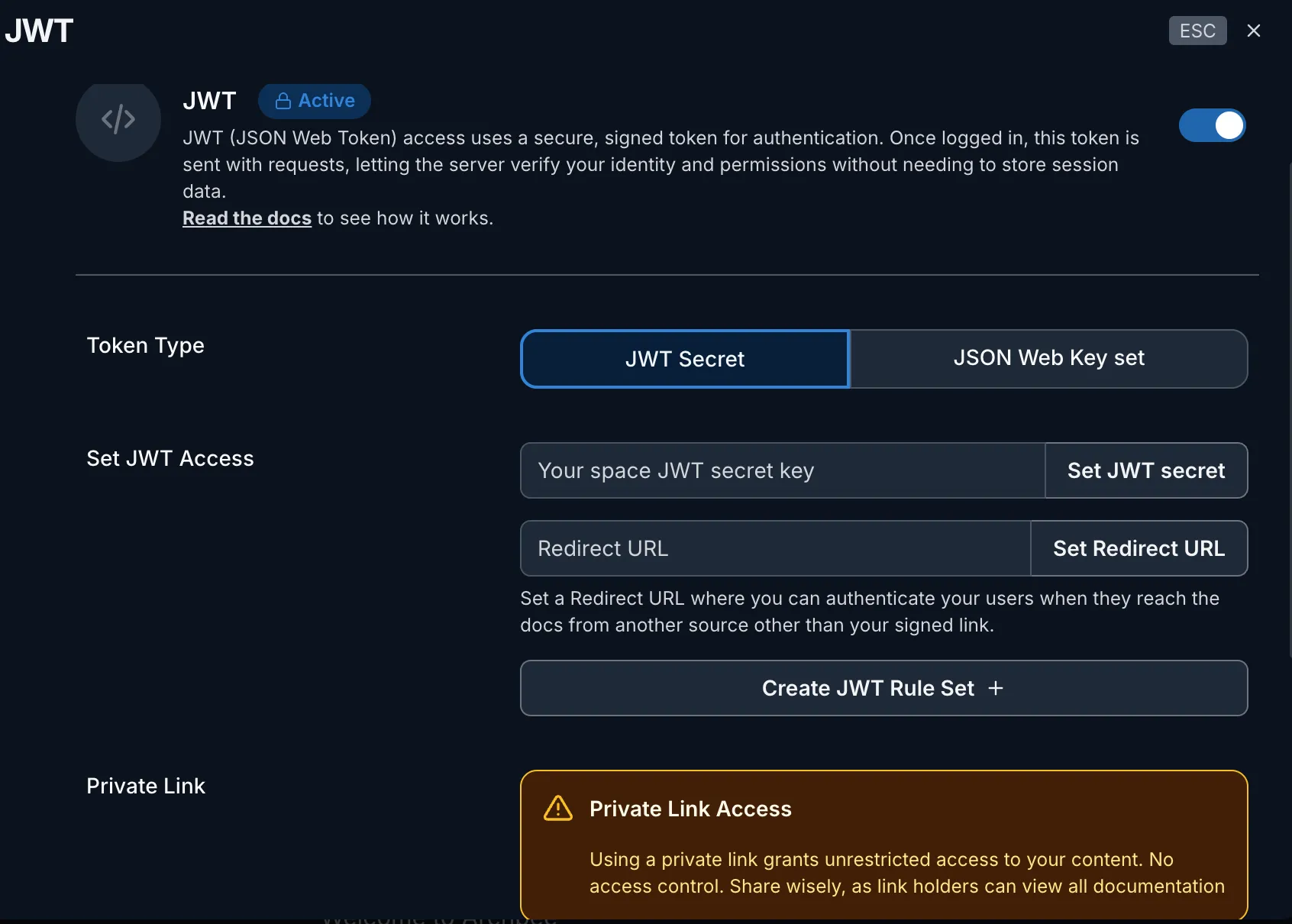
Go to the Spaces settings, and set a JWT secret key that you generate on your server
JSON WEB Key visitor authentication
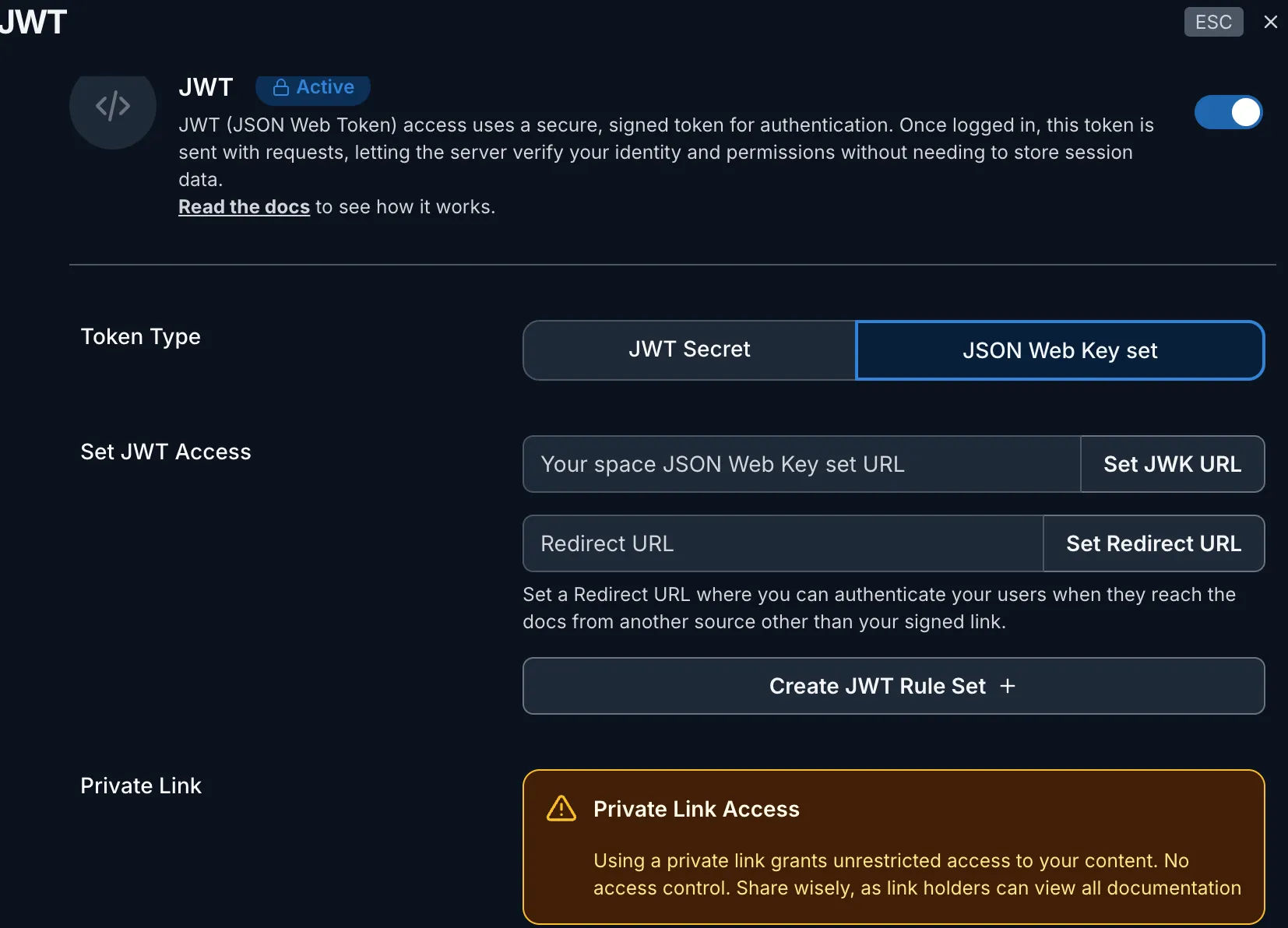
Go to the Spaces settings, and set a JSON WEB Key Set URL. A JSON Web Key Set (JWKS) URL is a URL endpoint where a server publishes its public keys in JSON format.
The JWKS URL typically points to a JSON document that contains an array of cryptographic keys used for verifying signatures.
When Archbee receives a JWT, it can retrieve the corresponding public key from the JWKS URL and use it to verify the JWT's signature, ensuring that the token hasn't been tampered with and was indeed issued by a trusted party.
A JWKS URL provides a standardized way for clients to obtain the public keys needed to verify JWT signatures in a secure and scalable manner.
This is a sample jwks.json file:
{
	"keys": [{
		"kid": "1234example=",
		"alg": "RS256",
		"kty": "RSA",
		"e": "AQAB",
		"n": "1234567890",
		"use": "sig"
	}, {
		"kid": "5678example=",
		"alg": "RS256",
		"kty": "RSA",
		"e": "AQAB",
		"n": "987654321",
		"use": "sig"
	}]
}
Generate the JWT token
Use one of the examples below to generate the JWT token.
You also need to replace the URL with the subdomain of your documentation site.
const sign = require('jsonwebtoken').sign;

exports.buildArchbeeLoginURL = function() {
  // Optional user credentials that you want to send back to Archbee
  const user = {
    name: 'John',
    email: 'Wick',
  };
  //create a signed token out of the user credentials with the
  //secret you set in Archbee
  const jwtToken = sign(user, '<archbeeJwtSecret>');
  //yourdomain is set in the Custom Domain tab
  const archbeeUrl = 'https://yourdomain.com';

  //create the complete URL containing the signed token that you'll send back to Archbee
  return `${archbeeUrl}?jwt=${jwtToken}&reload`;
};
Here is an example to generate a JWT token with .NET: https://github.com/dragosbulugean/archbee-jwt-dotnet
using JWT;
using JWT.Algorithms;
using JWT.Serializers;

var payload = new Dictionary<string, object>
{
    { "name", "John Wick" },
    { "email", "[email protected]" }
};
const string secret = "TW9zaGVFcmV6UHJpdmF0ZUtleQ";

IJwtAlgorithm algorithm = new HMACSHA256Algorithm(); // symmetric
IJsonSerializer serializer = new JsonNetSerializer();
IBase64UrlEncoder urlEncoder = new JwtBase64UrlEncoder();
IJwtEncoder encoder = new JwtEncoder(algorithm, serializer, urlEncoder);

var jwtToken = encoder.Encode(payload, secret);
var archbeeLink = $"https://docs.yourcompany.com/?jwt={jwtToken}&reload";

Console.WriteLine($"JWT Token: {jwtToken}");
Console.WriteLine($"Archbee Link: {archbeeLink}");
JWT tokens are bypassed on Preview/Staging
SAML - Security Assertion Markup Language
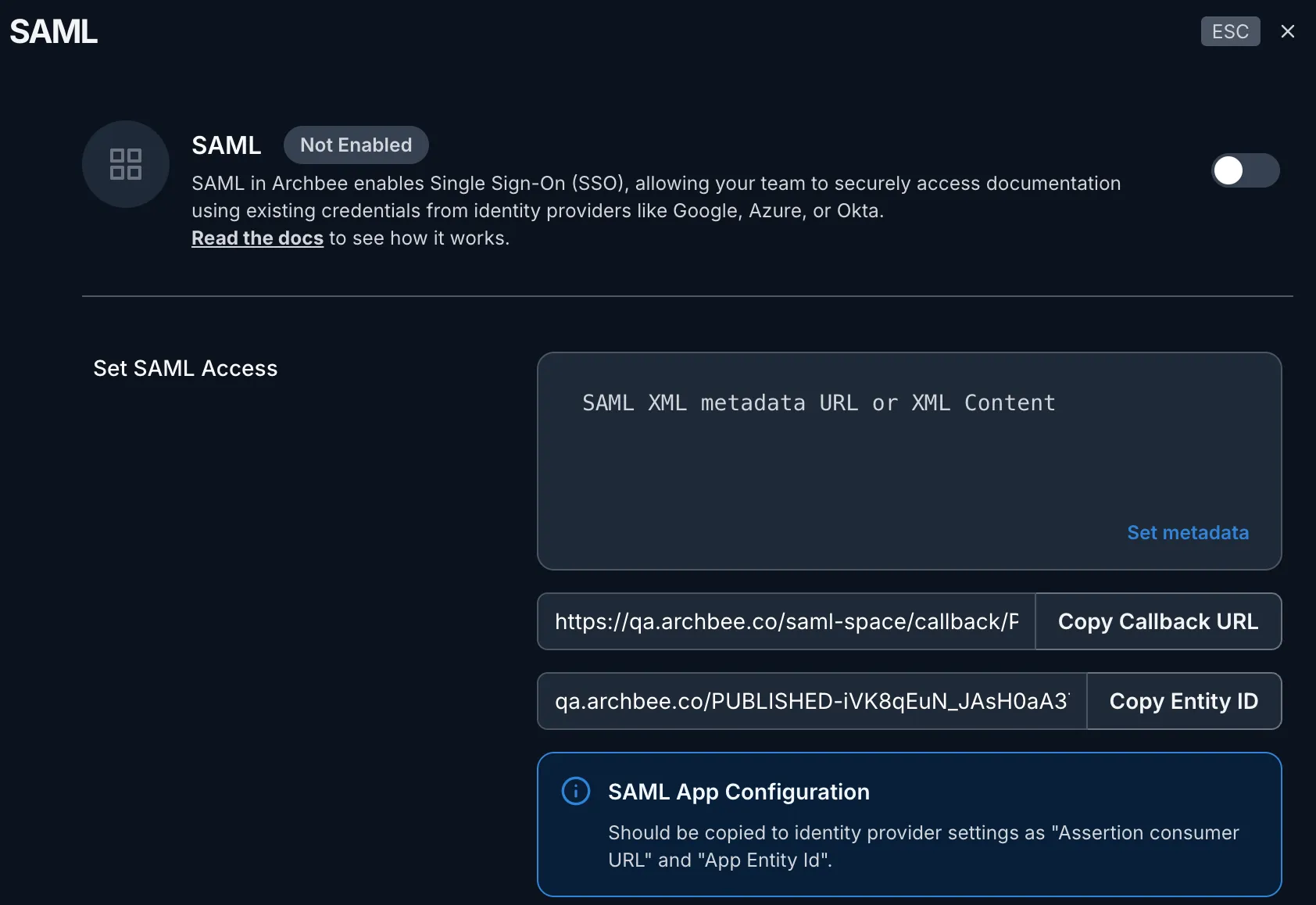
SAML can be configured for public space access in the same way as for team integration, see SAML Integration for more detailed steps regarding setting up each provider.
Note that just the metadata URL is needed as input. Also, we assume the space is already hosted on a custom domain.
In this way, the published space link will be routed through the new SAML application; thus, only members set up in the provider application can access the public portal.
How to set up SAML as a public access control
Go to Azure Services -> Microsoft Entra ID -> "+Add" -> App registration
Select "Accounts in this organizational directory only -Single tenant" and paste the CallBack URL from Archbee Space Settings ->Public Access Control -> SAML into "Redirect URI" as in the below image, choosing Web auth:

Click on "Register"
On the newly created app in Azure, go to "Endpoints" and copy the "Federation metadata document" from the Azure App to the Archbee Space Settings -> Public Access Control -> SAML into the "Set SAML Metatada URL"

A unique Entity ID will be generated in Archbee, copy the "api://PUBLISHED..." link in your Azure App - Expose an API -> Add -> Fill Up the URL -> Save it

Go to your Archbee space and re-publish it
Try to access the link and test the SAML authentication
Preview Settings
This feature allows you to simulate authentication settings in a controlled preview environment before going live for internal users.
Purpose
Enable this setting to apply authentication protection to your preview environment, restricting access to internal users only. This helps verify your auth configurations, user access flows, and protection settings without exposing changes to the public.
How to Enable
- Navigate to the Public Access Control section while you're in Space Settings
- Select any authentication methods
- Toggle off the Preview Settings
- Publish your changes to Preview and test the authentication

Multi-Authentication
The Multi-Authentication feature allows you to enable more than one authentication method for accessing your documentation portal. This gives your users flexibility and improves accessibility.
How it works
From the Public Access Control settings, you can toggle multiple authentication methods simultaneously. Users accessing your portal will be able to authenticate using any one of the enabled methods.
Use Case Example
If you enable both Private Link and Password, users can access your documentation using either:
- A secure private link you share with them
- Or a common password you define
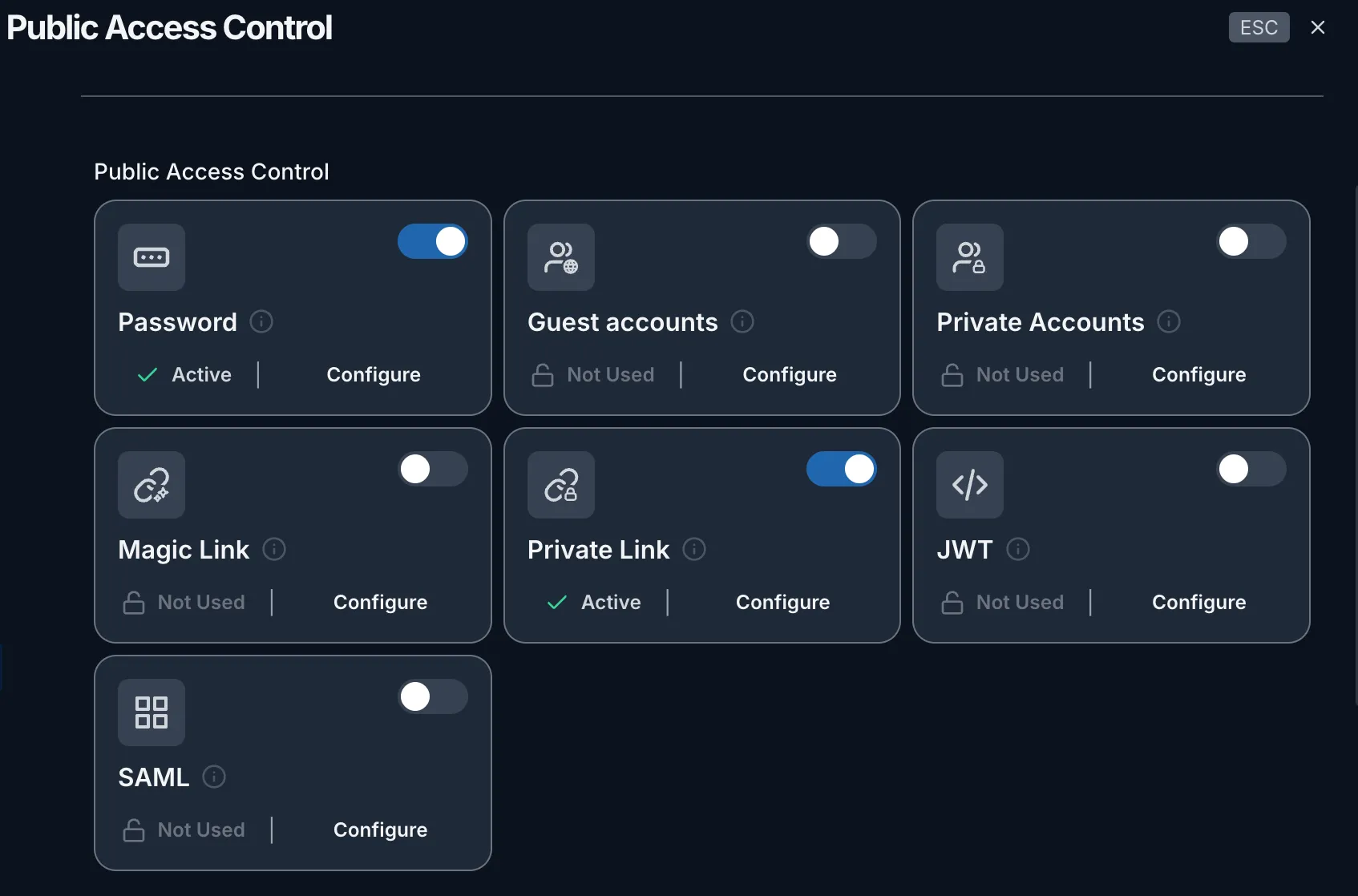
Only users who meet one of the enabled authentication methods will be granted access. You can disable any method at any time via the toggle switch in the Public Access Control settings.