RSS Feed
Use RSS to passively notify readers about documentation updates without emails or manual check-ins.
Overview
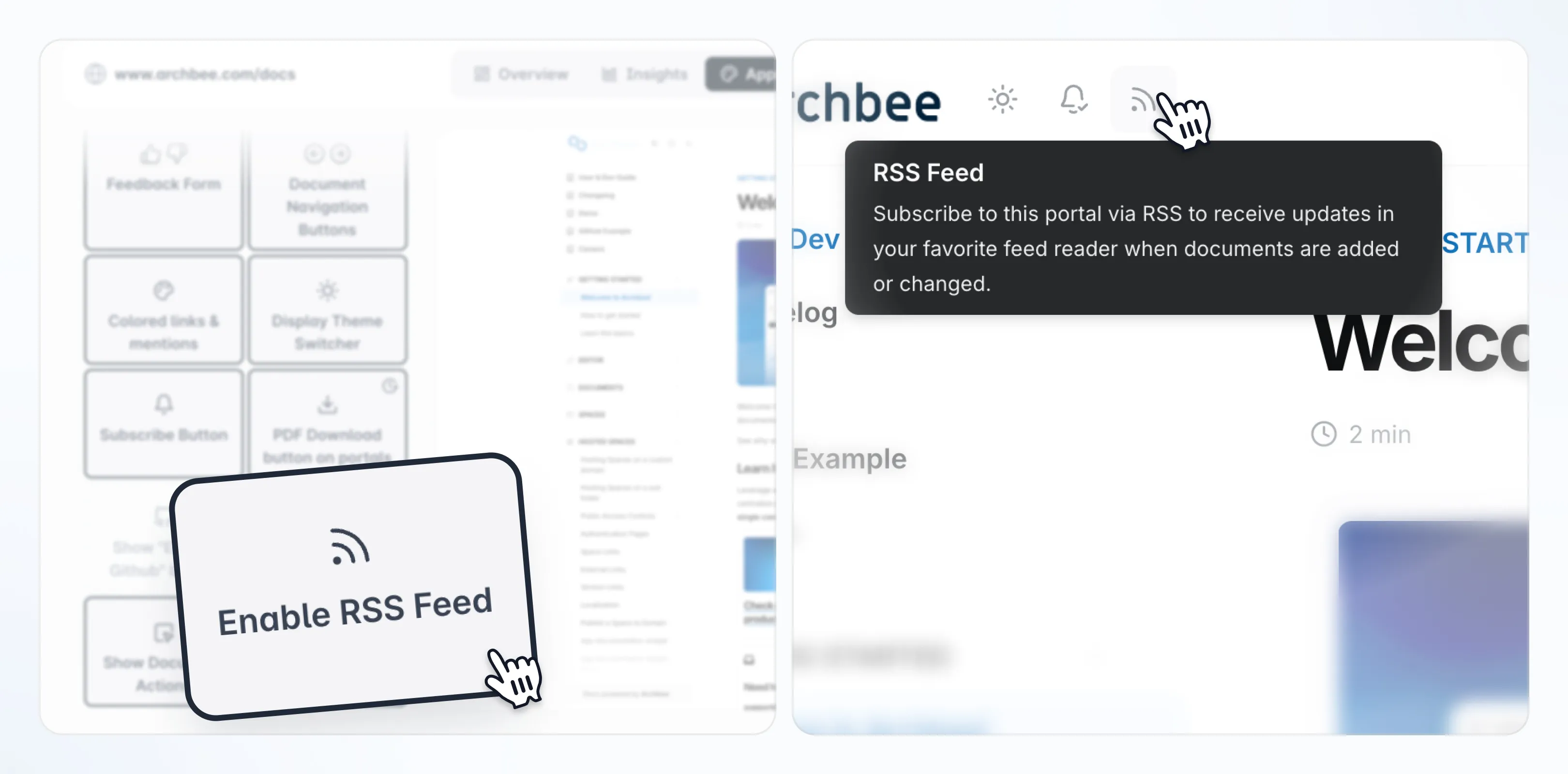
The RSS Feed feature lets readers subscribe to updates from your published portal using any standard RSS reader (such as Feedly or Inoreader). When enabled, Archbee generates an RSS feed for the portal and displays an RSS icon directly on the published site.
This is ideal when you want customers or internal readers to stay informed about newly published content or updates to existing documentation, without relying on email notifications or manual visits.
How It Works
When RSS is enabled for a space, Archbee:
- Generates an RSS feed for that space’s published portal
- Displays an RSS icon in the portal UI
- Allows readers to subscribe using any compatible RSS app
Only published content is included in the feed.
Enable RSS Feed (Space Settings)
This step is typically performed by space owners during initial portal setup, before sharing the portal with readers.
To enable RSS for a space:
Open the relevant Space Dashboard.
Click on the Appearance tab.
Turn on RSS Feed.
Scroll to the bottom of the page to see "Potrtal Interaction" section
Publish Space to enable it on your portal.
RSS is enabled per space from the Appearance settings. If the space belongs to a Space Group, this setting can also be synchronized through the group’s settings.
Publish Docs (So They Appear in the Feed)
The RSS feed includes only content that is published to the portal. Drafts or unpublished updates will not appear until they are published.
Subscribe to the Portal RSS Feed
Once RSS is enabled and the portal is published, readers will see an RSS icon on the published portal.
To subscribe:
Open the published portal in a browser.
Click on the RSS icon
Subscribe using your preferred RSS reader.
Depending on the browser, the RSS URL may open directly or require copying the feed URL into an RSS app manually.
Recommended Use Cases
RSS works best for portals where updates matter. Common examples include:
Release notes or product changelogs
API documentation
Announcements or policy updates
Best Practices
To make RSS subscriptions valuable for readers:
- Maintain a clear What’s New or Changelog section.
- Publish updates consistently.
- Let readers know RSS is available (for example, on the portal homepage or during onboarding).
- Test the feed in at least one popular RSS reader to ensure updates appear correctly.