Azure DevOps
Connect an Azure DevOps organization to Archbee, then sync its repositories to doc spaces. Archbee connects in one of two ways:
- Personal access token. It is the quickest to set up. The token belongs to one person, so it stops working when that person leaves or the token expires.
- Microsoft Entra ID service principal. It is an app identity that belongs to your organization, not to a person. Pull requests that Archbee opens come from the app.
Only organization admins in Archbee can connect Azure DevOps.
Connect with a personal access token
You need permission to create tokens in the Azure DevOps organization.
Create the token
- Open the token page for your organization at https://dev.azure.com/{organization}/_usersSettings/tokens, where {organization} is your organization name, and select New Token.
- Grant the token full access or include at least:
- Code (read & write)
- Project (read)
- Service hooks (read & write)
- Copy the token. Azure DevOps shows it once, and you cannot read it again after you close the dialog.
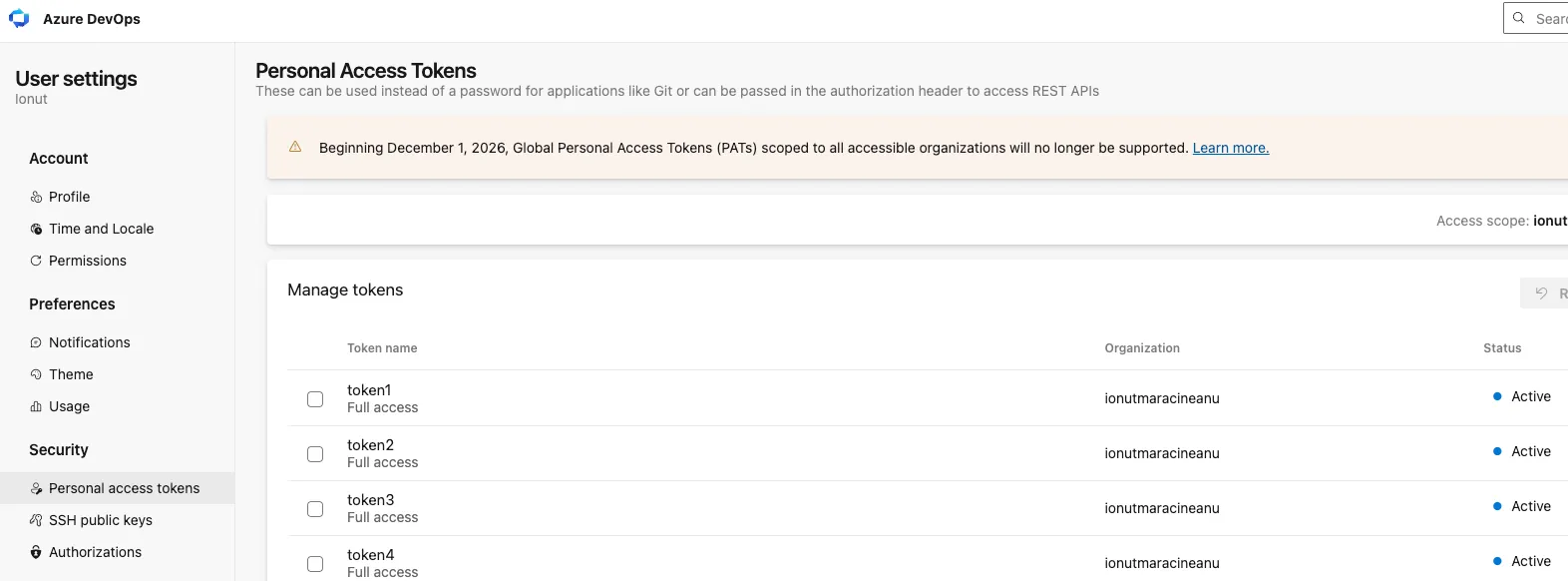
Connect the token in Archbee
- In Archbee, open Organization Settings > Configurations and select Azure DevOps.
- Select the Personal Access Token tab.
- In Organization, enter the organization name. This is the {organization} part of https://dev.azure.com/{organization}.
- In Personal access token, paste the token you copied.
- Select Connect. Archbee checks the token by reading the organization's repositories, then shows Azure DevOps connected successfully.
- Select Azure DevOps again to see the repositories, grouped by project.
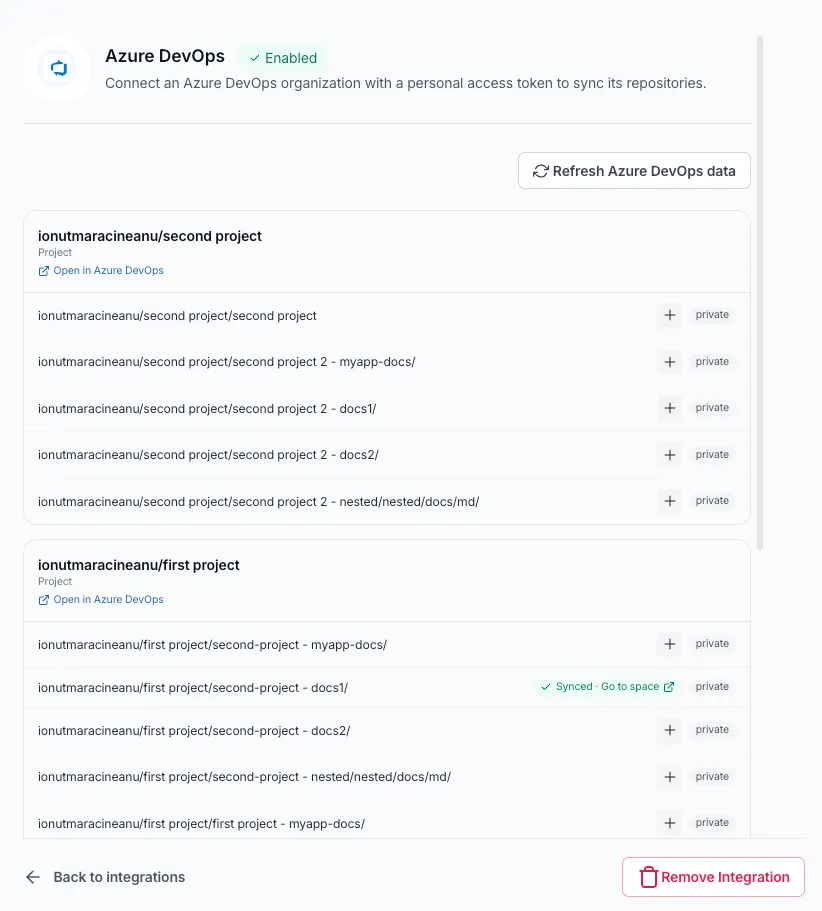
If the list is empty, check that the token has the Code (read) scope and that the organization has Git repositories. To replace an expired token, return to the same screen and use the Update the personal access token form.
Connect with a Microsoft Entra ID service principal
You need permission to register apps in the Microsoft Entra tenant that your Azure DevOps organization is connected to, and permission to manage users in the Azure DevOps organization. To check which tenant the organization uses, open Organization settings > Microsoft Entra in Azure DevOps.
Register an app in Microsoft Entra ID
In the Microsoft Entra admin center, open App registrations and select New registration. Give the app a name, such as Archbee. A single-tenant app is enough. Leave Redirect URI empty, because Archbee does not sign in with a browser.
In the new app, open Certificates & secrets and create a new client secret. Copy the secret's Value right away. Archbee needs the Value, not the Secret ID, and Microsoft shows the Value only once.
Write down when the secret expires. When it expires, Archbee stops syncing until you add a new one.
On the app's Overview page, copy the Application (client) ID and the Directory (tenant) ID.
Add the app to Azure DevOps
In Azure DevOps, open Organization settings > Users and add the app by its name. Give it the Basic access level. The Stakeholder level cannot read repositories.
Add the app to the Contributors group of each project you want to sync.
To keep spaces in sync on every push, add the app to the Project Administrators group of each project as well. Instead, you can grant it only the Edit subscriptions and View subscriptions permissions. Archbee needs them to create the service hooks that tell it about new pushes.
Without the subscription permissions, Archbee still imports a space once, but it does not learn about later pushes. You can then sync the space by hand with Sync from repo in Space settings.
Microsoft describes these steps in Use service principals and managed identities in Azure DevOps.
Connect the service principal in Archbee
- In Archbee, open Organization Settings > Configurations and select Azure DevOps.
- Select the Service Principal tab.
- Fill in the four fields:
- Organization: the {organization} part of https://dev.azure.com/{organization}.
- Directory (tenant) ID: the tenant ID from the app's Overview page. A domain such as contoso.onmicrosoft.com also works.
- Application (client) ID: the client ID from the same page.
- Client secret: the secret's Value.
- Select Connect. Archbee signs in as the app and reads the organization's repositories. If that works, it saves the credentials and shows Azure DevOps connected successfully.
Archbee never shows the client secret again. When you open the form later, the secret field is empty.
If the list of repositories is empty, check that the app has Basic access and is a member of the projects you want to sync.
Fix a failed connection
If Connect fails, Archbee keeps the credentials it had before and shows why:
- Microsoft Entra ID could not find this directory (tenant) ID. Copy the tenant ID again from the app's Overview page.
- Microsoft Entra ID could not find this application (client) ID in the tenant. Copy both IDs from the Overview page of the same app.
- The client secret is not valid. Paste the secret's Value, not its Secret ID.
- The client secret has expired. Create a new client secret in Microsoft Entra ID and paste its Value.
- A Conditional Access policy in your Microsoft Entra tenant blocked the sign-in for this service principal. Ask your Entra admin to allow the app.
- Azure DevOps refused the service principal. Add the app to the organization under Organization settings > Users with Basic access. Then check that the organization is connected to the same tenant as the app.
- Azure DevOps could not find the organization. Check the spelling in Organization.
Replace the client secret
Create the new secret in Microsoft Entra ID before the old one expires. Then open Azure DevOps in Configurations, where the form is titled Update the service principal. The organization and both IDs are filled in. Paste the new Value and select Connect.
Archbee does not warn you when a secret expires. Syncs stop, and Refresh Azure DevOps data shows The client secret has expired.
Switch between a token and a service principal
Open Azure DevOps in Configurations, select the other tab, fill it in and select Connect. When the connection works, Archbee removes the credentials of the method you used before.
Disconnect Azure DevOps
Select Remove Integration at the bottom of the Azure DevOps screen, then confirm. Archbee removes its service hooks from the organization, disconnects every space that synced from it and deletes the stored credentials. The spaces keep their content.
This integration works similarly to the GitHub integration. For more information about the two-way sync functionality and repository configuration, see Set up the repository
Pushes from Azure DevOps wait for review the same way as pushes from GitHub. See Review incoming git changes.