Intercom
Archbee's Intercom integration does two things:
- The Archbee app in the Intercom Inbox lets your team search your published docs and send a relevant article to a customer in a few clicks.
- Internal articles sync copies a space's docs into Intercom as internal articles, so Fin AI Agent and Copilot can use them to answer questions. See Sync docs to Intercom for Fin and Copilot.
The Intercom integration is available on Enterprise plans.
How it works
First, you need to integrate Intercom with Archbee (see below how to do it)
After the successful integration and configuration, the Archbee app will allow you to:
- Search the content of your published Archbee docs portal/knowledge base and send your customer an article directly inside the Intercom chat
- Send your customer a Search box so he can search topics of interests from your Archbee docs portal/knowledge base directly inside the Intercom chat
How to configure Intercom integration
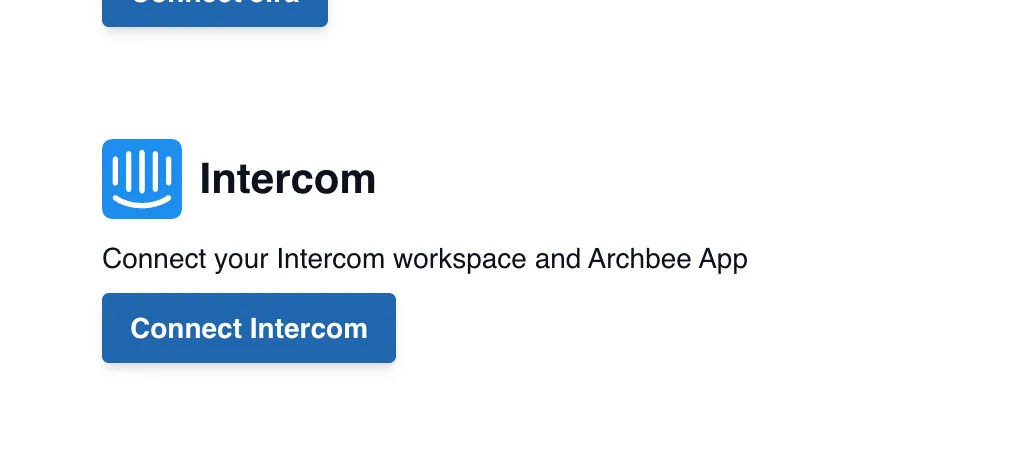
Go to the Integrations page and click the Connect Intercom button. Only organization admins can connect Intercom.
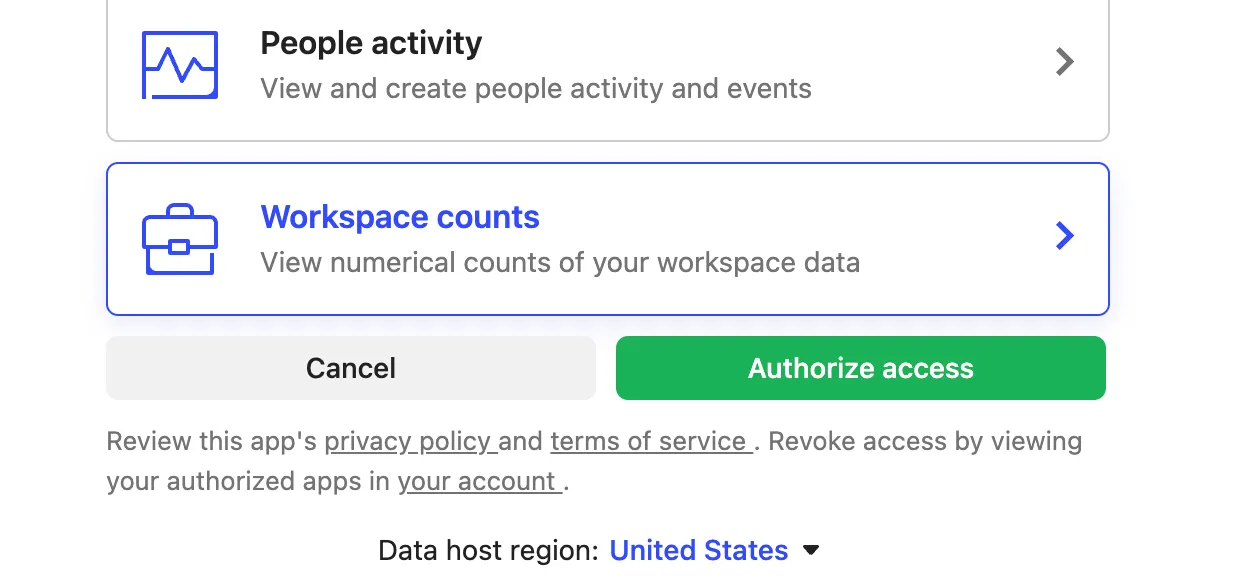
Authorise access for Archbee - Intercom integration
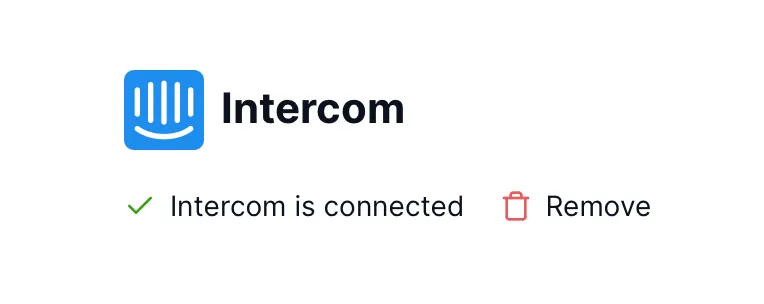
And if everything goes OK, you should see in the integrations page that Intercom is connected
Go to Intercom App Store and search for Archbee App

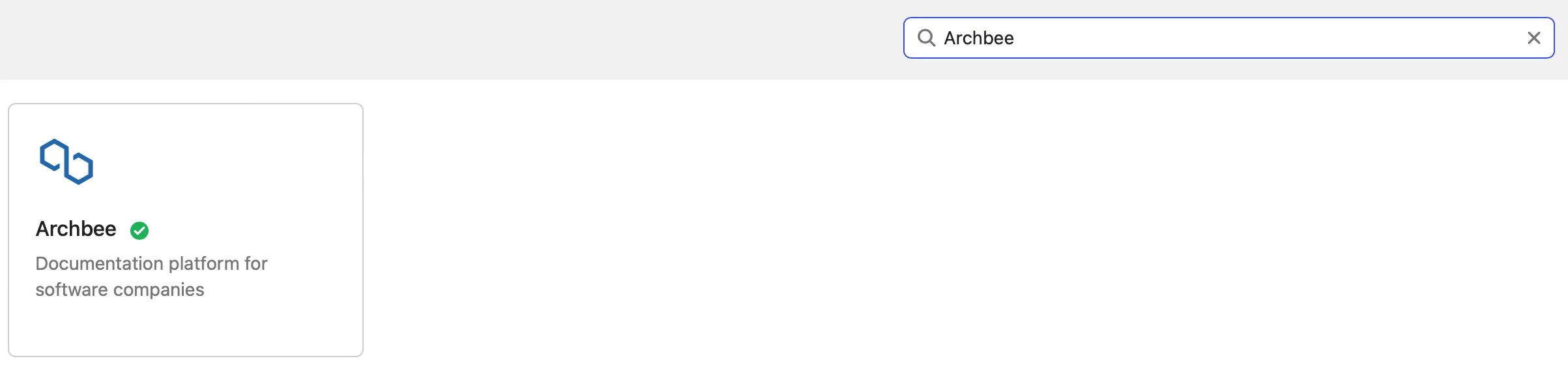
Check if the Archbee App is already installed (it should be installed by default after step 1 and step 2):
- Click the Archbee app
- A popup will open with Archbee app details - check on the lower right side for the Install/Uninstall button
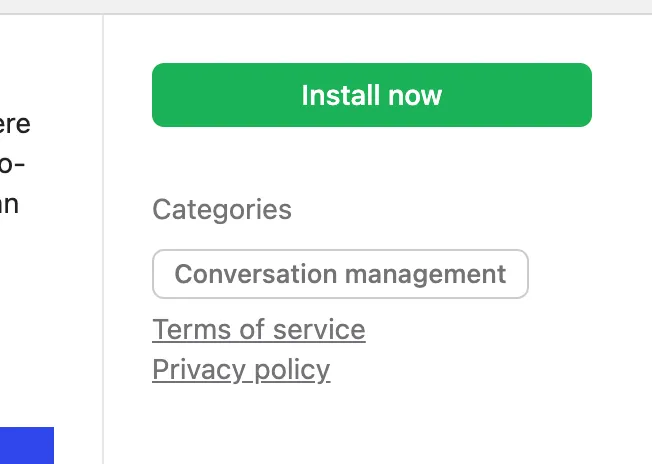
Now that you have the Archbee Search app installed, there are 2 ways to access it from your Intercom Inbox view
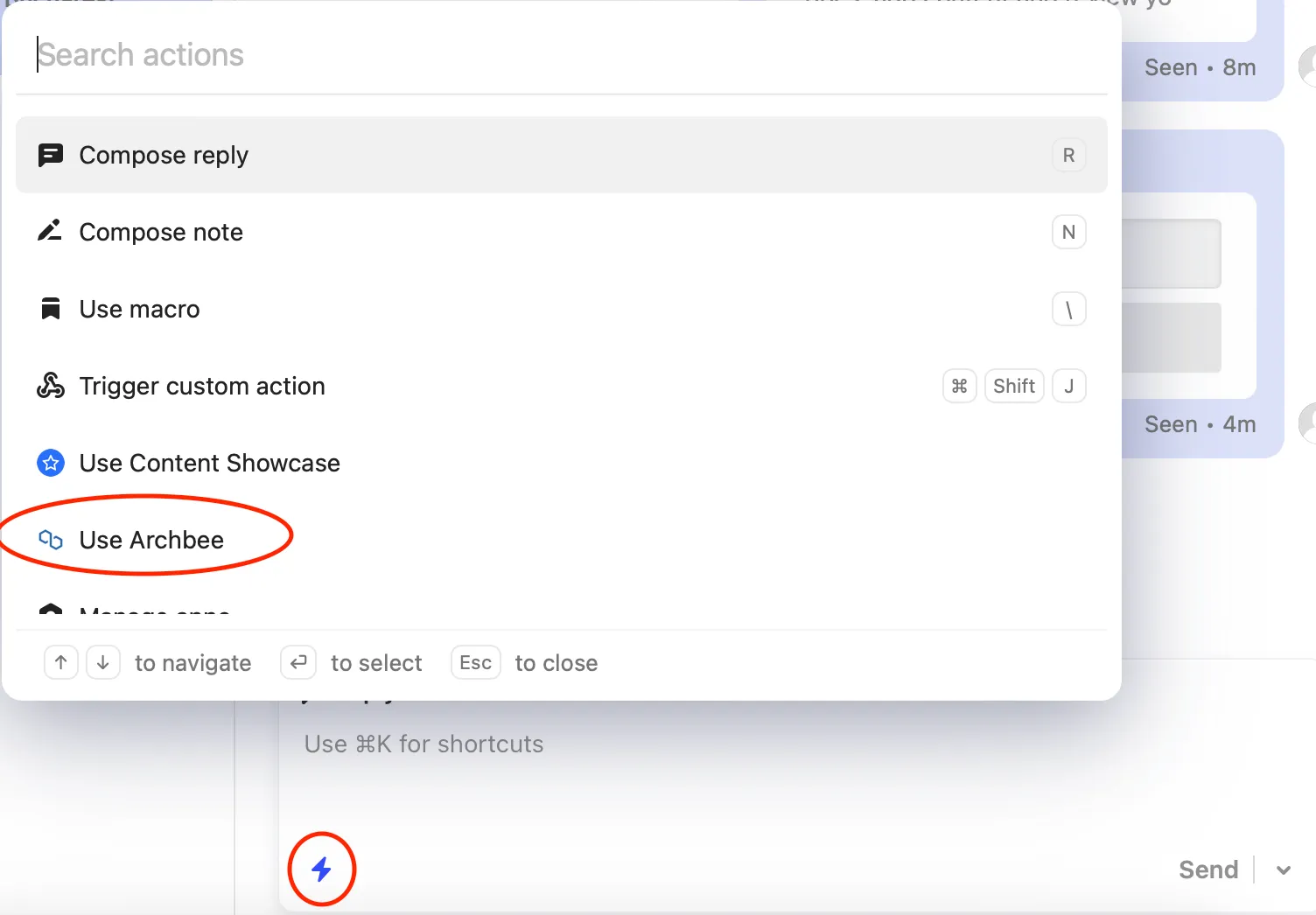
Archbee from the chat bar
1. Open Shortcuts menu and select Use Archbee from the list
2. Search by keywords and share the results with your customer by clicking the Add to Chat button
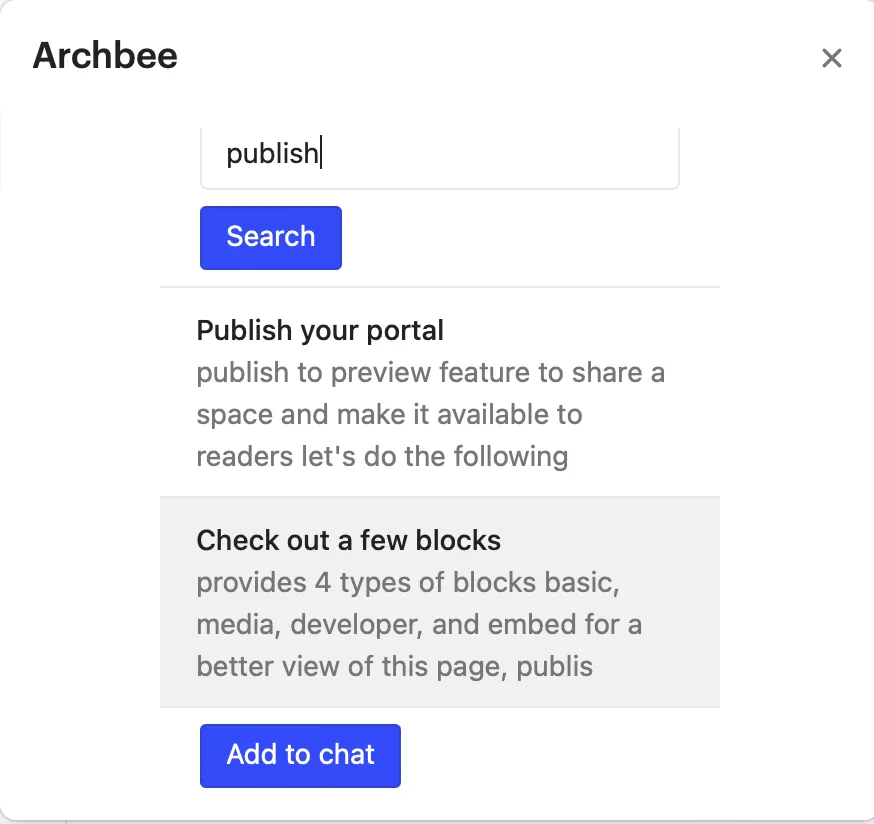
3. Click on any of the results to open them in a new tab and verify before you send
Access Archbee from the right panel
1. Open Edit Apps on the bottom right and PIN Archbee to your bar
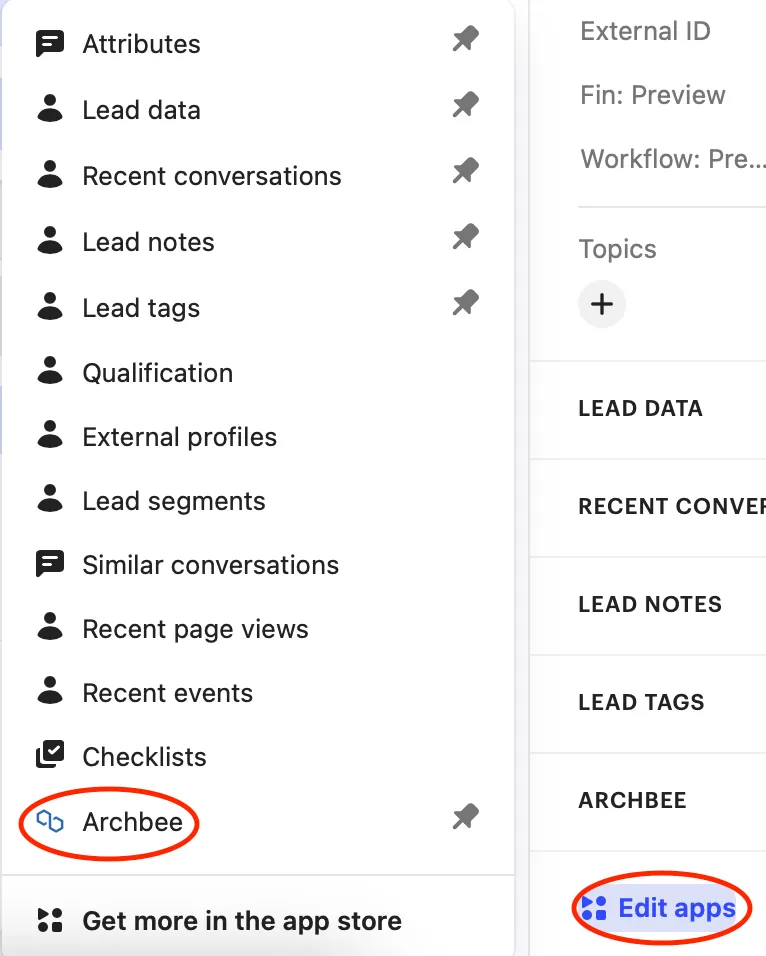
2. Open the newly added Archbee App, type your keywords and hit Search button
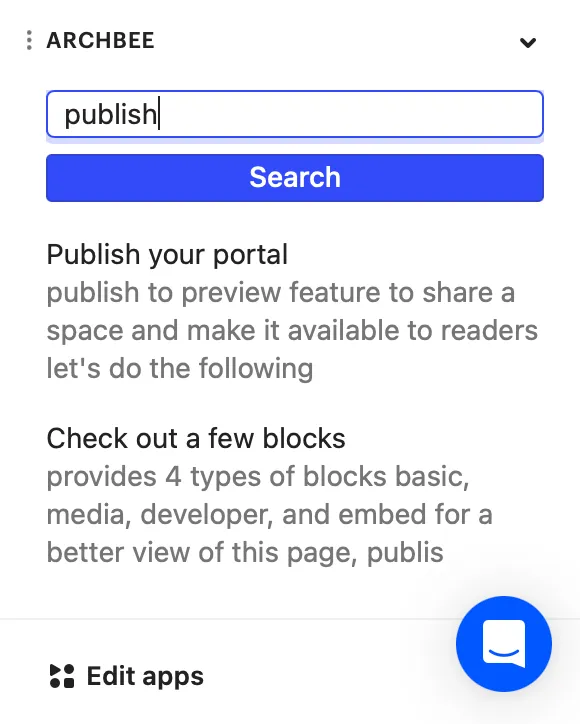
3. Click on any of the results to open them in a new tab and verify before you send
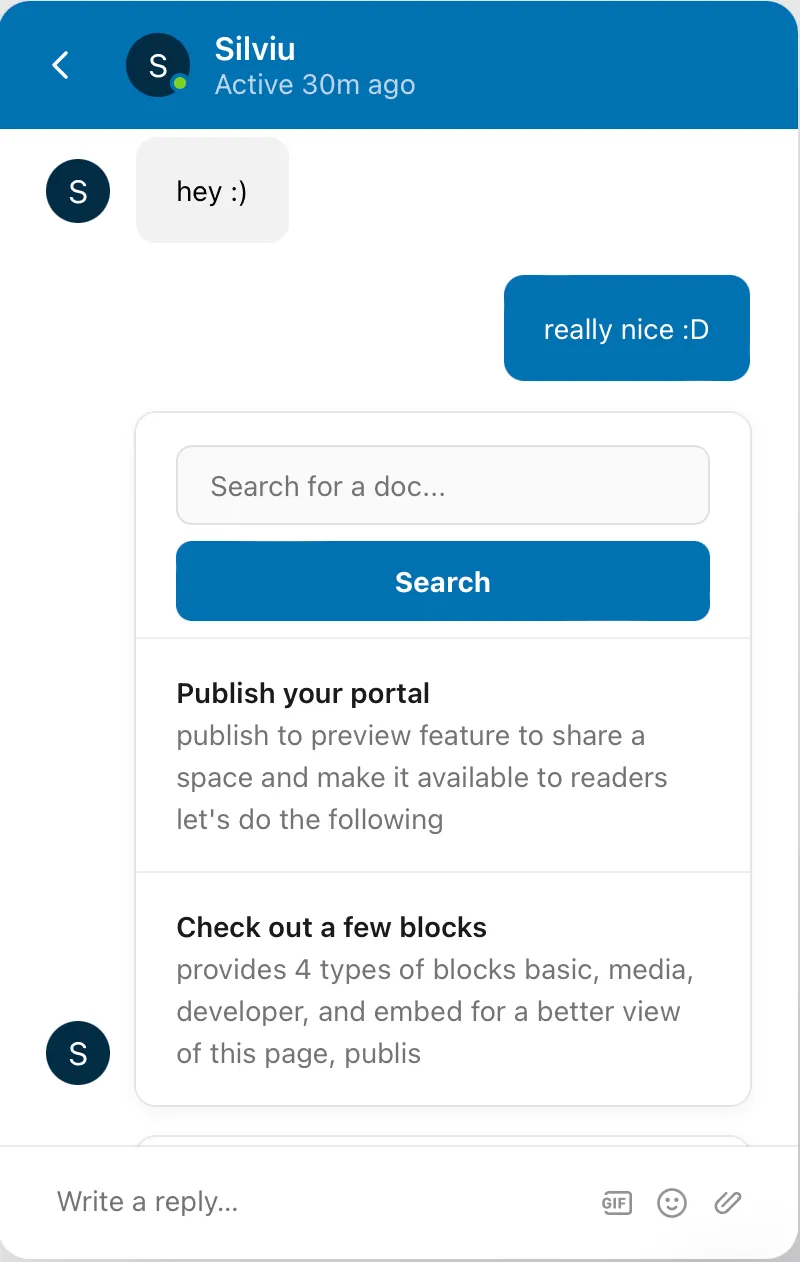
This is how the articles you send will look like to your customer
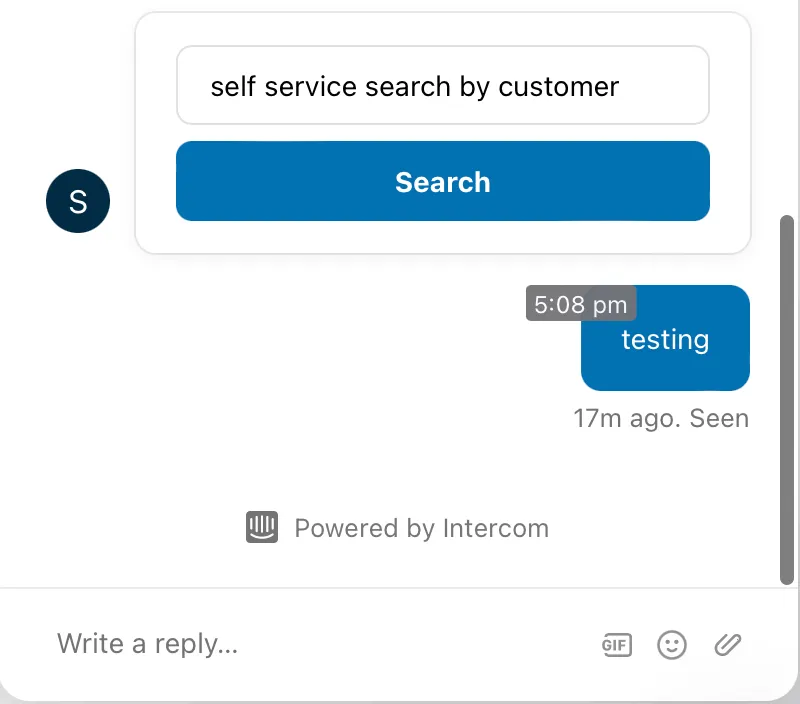
With the Archbee Search App you can also send blank search boxes and the user can search by himself directly in the Intercom app
Sync docs to Intercom for Fin and Copilot
Archbee can copy a space's docs into Intercom as internal articles. Fin AI Agent and Copilot use them to answer questions, and your team finds them in Intercom with your other internal articles.
Connect Intercom to Archbee, as described in How to configure Intercom integration.
Open the space's Space Settings and select the Integrations tab, under OTHER SETTINGS. The tab appears once Intercom is connected.
Turn on Internal articles sync. Anyone who can edit the space can turn it on or off.
Publish the space. The sync runs after every publish.
If you connected Intercom before internal articles sync was available, disconnect it on the Integrations page and connect it again, so Archbee gets permission to write articles.
What gets synced
- Every doc in the space becomes one internal article, including hidden docs and shadow docs. Categories, links and empty docs are skipped.
- Each article has the doc's title and its content as markdown. Reusable variables show the values of the published space.
- A doc with a public page ends with a Source link to it, so Fin and Copilot can send readers to the full page. Hidden docs and shadow docs have no public page, so their articles have no link.
- The Intercom admin who connected Archbee is the author of the articles.
- New articles are available to Fin AI Agent and Copilot. If you turn either off for an article in Intercom, later syncs leave it off.
- Each publish updates only the docs that changed since the last sync, and deletes the articles of docs that were removed from the space.
Fin AI Agent can use internal articles when it answers your customers. Everything in a synced space is sent to Intercom, including hidden docs, shadow docs and docs behind access control, so only turn the sync on for spaces whose content Fin may share with customers.
Edit the doc in Archbee, not the article in Intercom. The next publish that changes the doc overwrites the article.
Stop syncing
- Turn off Internal articles sync and publish the space. Archbee deletes the articles it created.
- Unpublishing or deleting the space also deletes its articles.
- Disconnecting Intercom stops the sync but leaves the articles in Intercom. To remove them, turn the sync off and publish before you disconnect.
- If you connect Archbee to a different Intercom workspace, the articles stay in the old workspace, and the next publish creates new ones in the new workspace.