GitHub 2-way sync
Overview
GitHub's 2-way sync feature allows for a bidirectional synchronization between GitHub repositories and Archbee. Unlike a traditional one-way sync, which only updates changes from a source to destination (Github to Archbee), 2-way sync ensures that changes made in both GitHub and Archbee are reflected on each platform.
Changes you make in Archbee reach GitHub through a pull request that you merge. Commits pushed to the tracked branch reach Archbee. While auto-merge is off, which is the default, each push waits for review in Archbee before it changes the space. See Review incoming git changes.
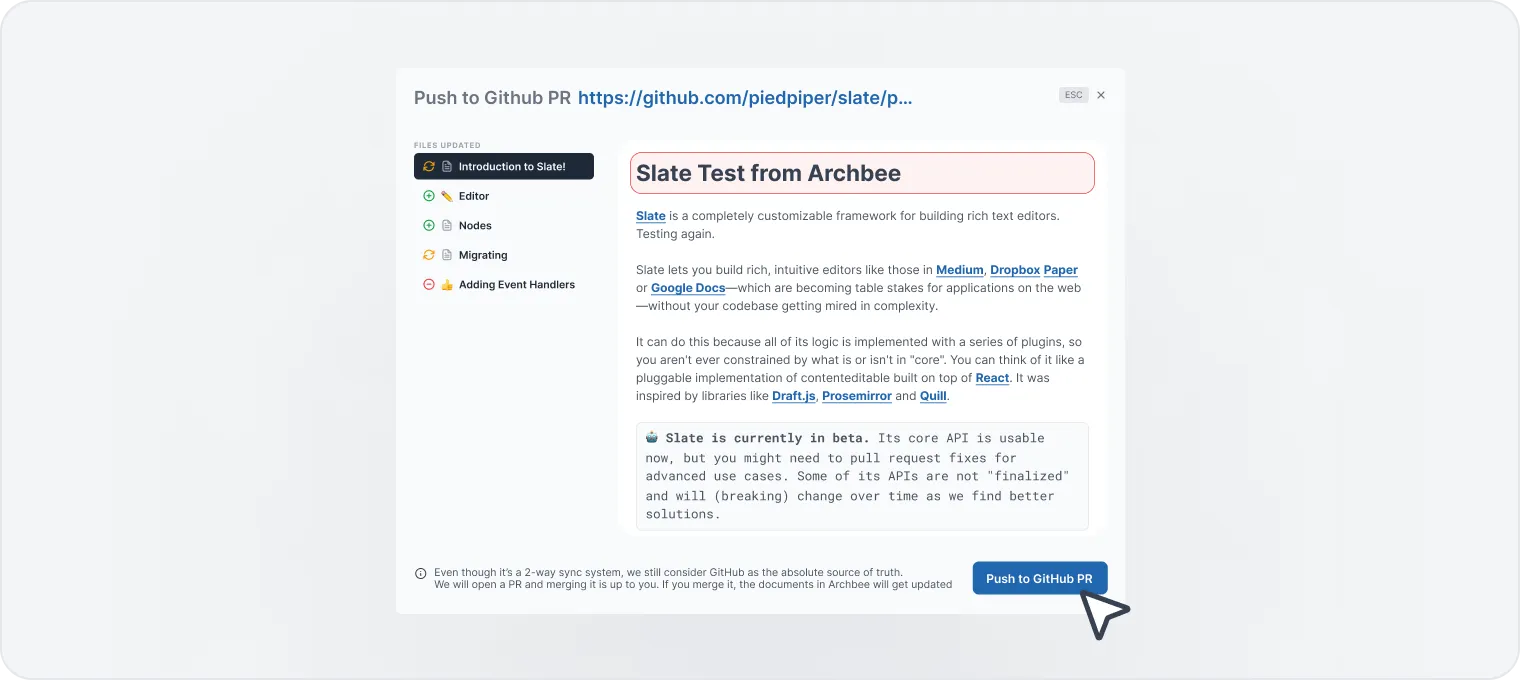
Even though this is a 2-way sync system, we still consider GitHub as the absolute source of truth. We will open a PR, and whether you merge that request is up to you. When you merge it, Archbee updates the documents. If auto-merge is off, the merged changes first wait for review in Archbee.
Whether you're a developer, project manager, or collaborator, this feature allows you to seamlessly synchronize your GitHub repositories with Archbee, ensuring consistency across your workflows.
The October 2026 update changed how Archbee writes some blocks to Markdown and MDX. The next time Archbee writes a document to your repository, some lines can change even where nobody edited the content. The new forms are listed in Editor › Markdown and MDX.
Get started 🏁
To enable the 2-way sync on your Archbee account, follow these steps:
- After the setup is done, you will be redirected to the Configurations page, and you should see the Connected status on the GitHub card.
Create a new space and write in GitHub ✍️
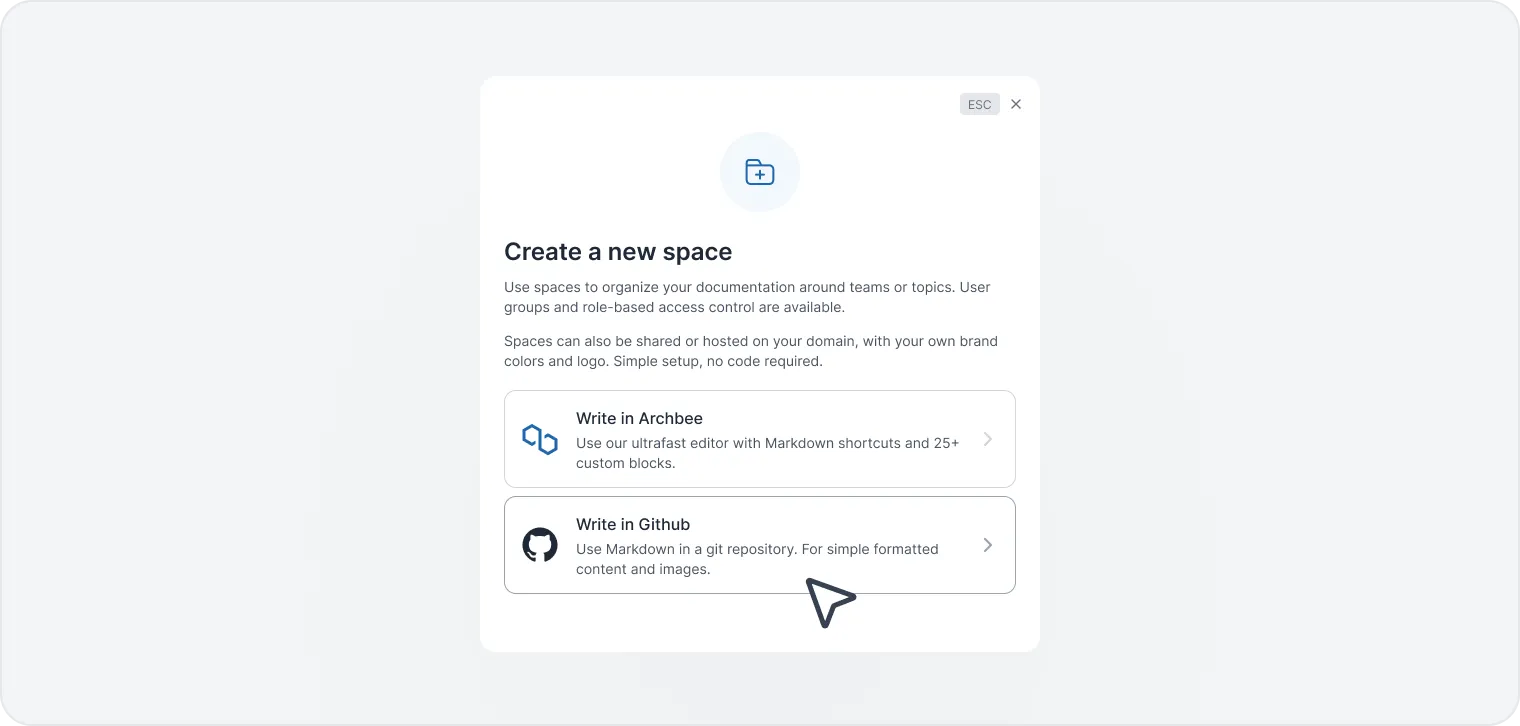
When you create a new Space, you can select a repository from the Write in Github option.
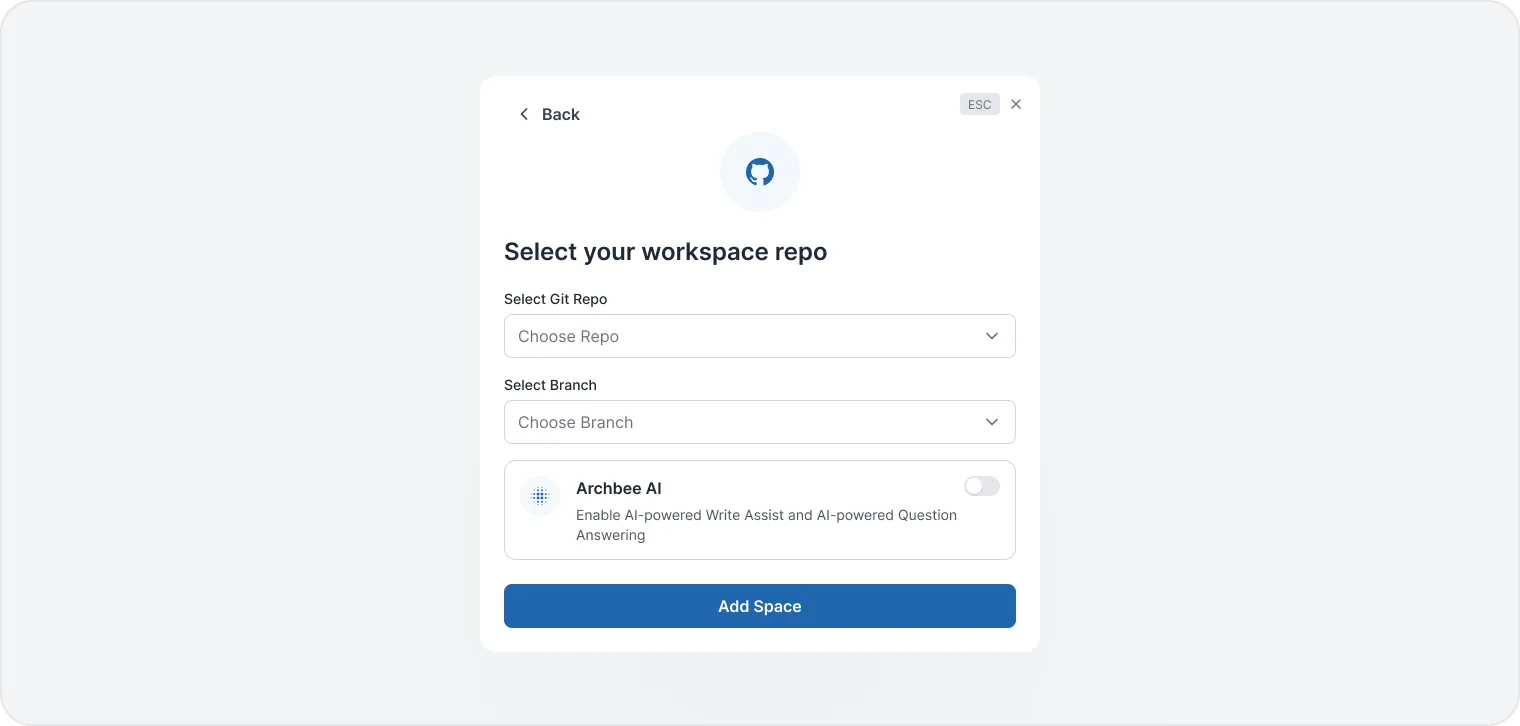
In Select Git Repo and Select Branch, choose the repository and the branch you want to import, then click Add GitHub-backed Space at the bottom of the modal:
Once completed, you should receive a notification that your GitHub content has been imported.

Edit in GitHub 👈
In the Archbee editor, click the GitHub icon in the document's top bar. GitHub opens the file in a new tab, on the branch Archbee tracks.

Make your edits.
Click on Commit changes when ready.
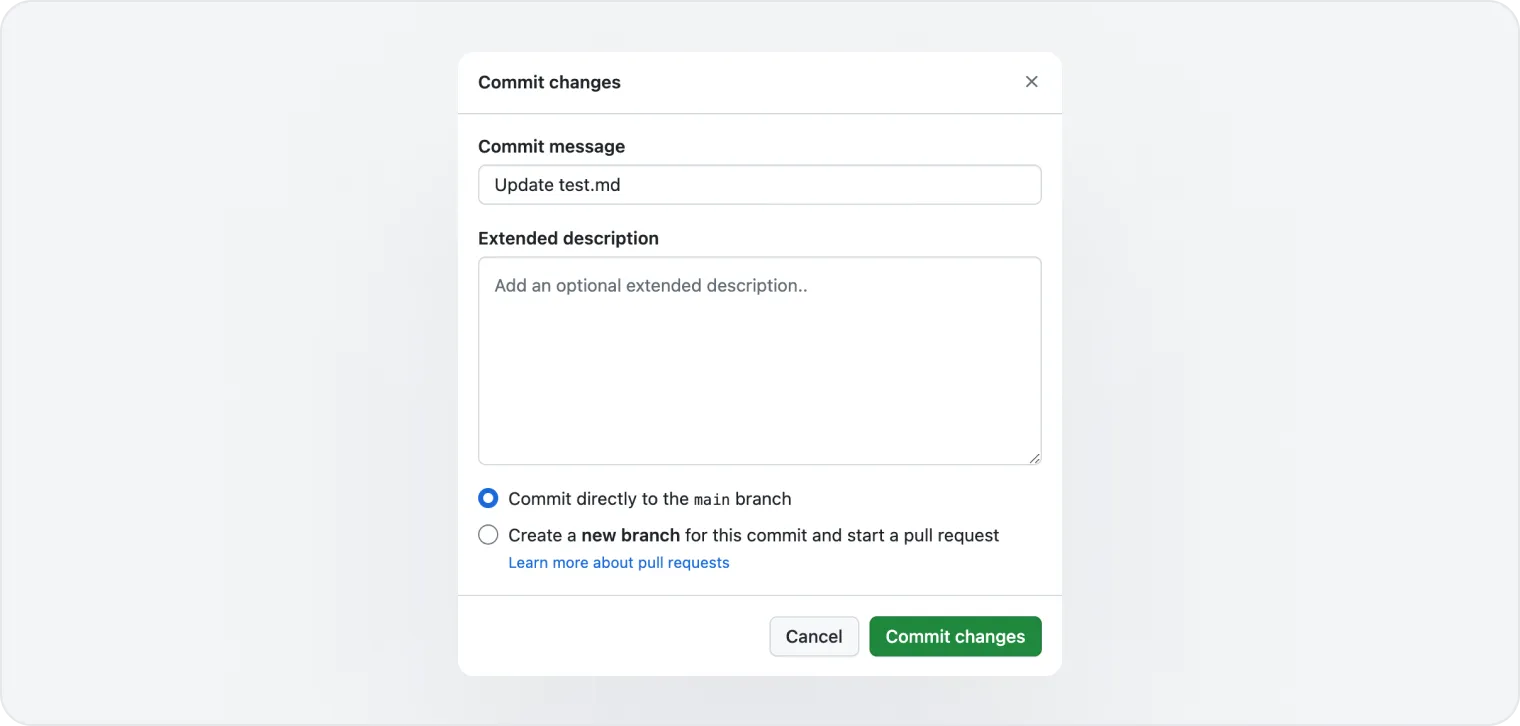
Go back to Archbee. If auto-merge is on, a notification says that updates are arriving from GitHub, and the content updates.

If auto-merge is off, the document shows a banner instead, and the content stays the same until someone merges the change. See Review incoming git changes.
Create a PR 👈
In the Archbee editor, click Draft in the document's top bar to create a draft, or to open the existing one. Spaces synced with GitHub use drafts from the start.

Write/replace your content in Draft mode.
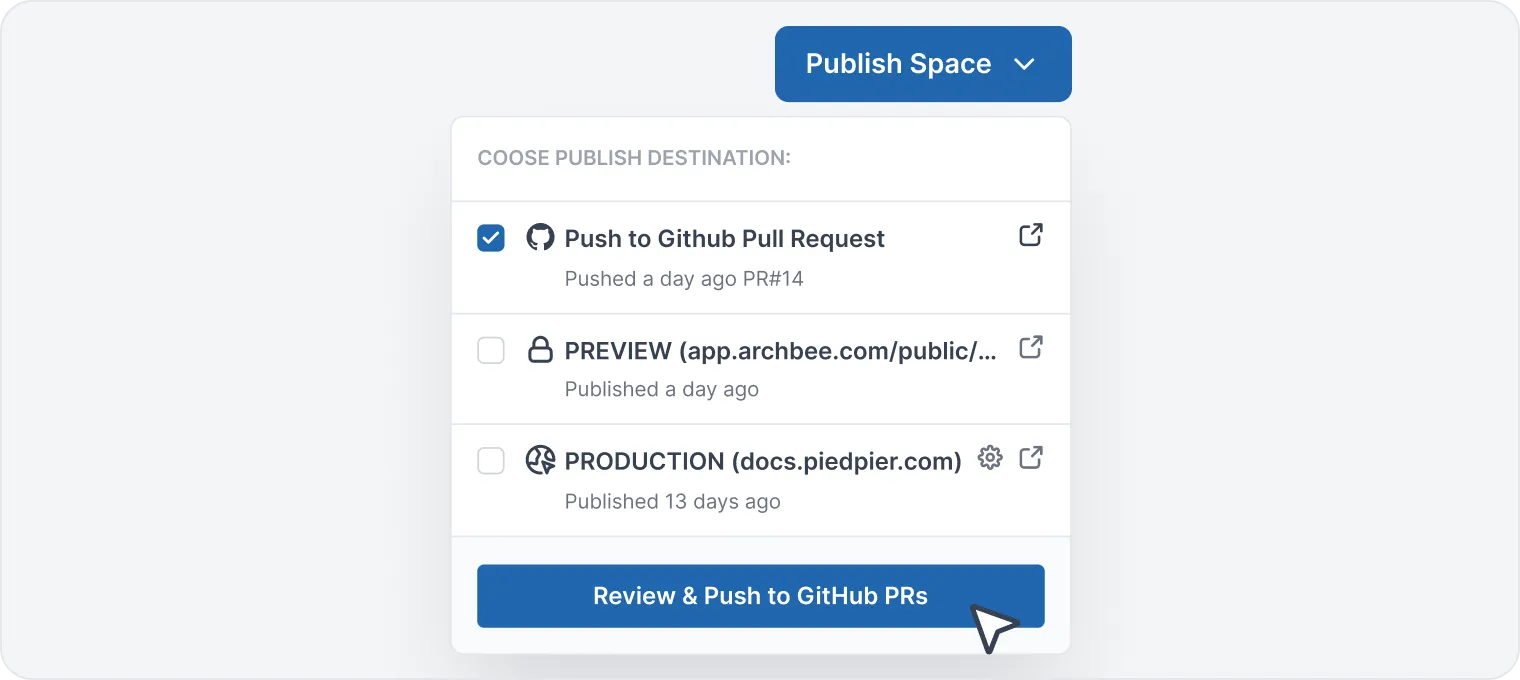
Once you've completed this, click Publish Space in the top right corner. In the Update Github PR row, click Review & Push to PRs.
Review your changes and if it's all good, click Push to Github PR.
Archbee opens the pull request, or updates the open one, and a notification confirms it. To open the pull request in GitHub, click the external-link icon in the Update Github PR row of the Publish Space menu:

Review the changes in the GitHub repository.
Click on Merge Pull request -> Confirm Merge.
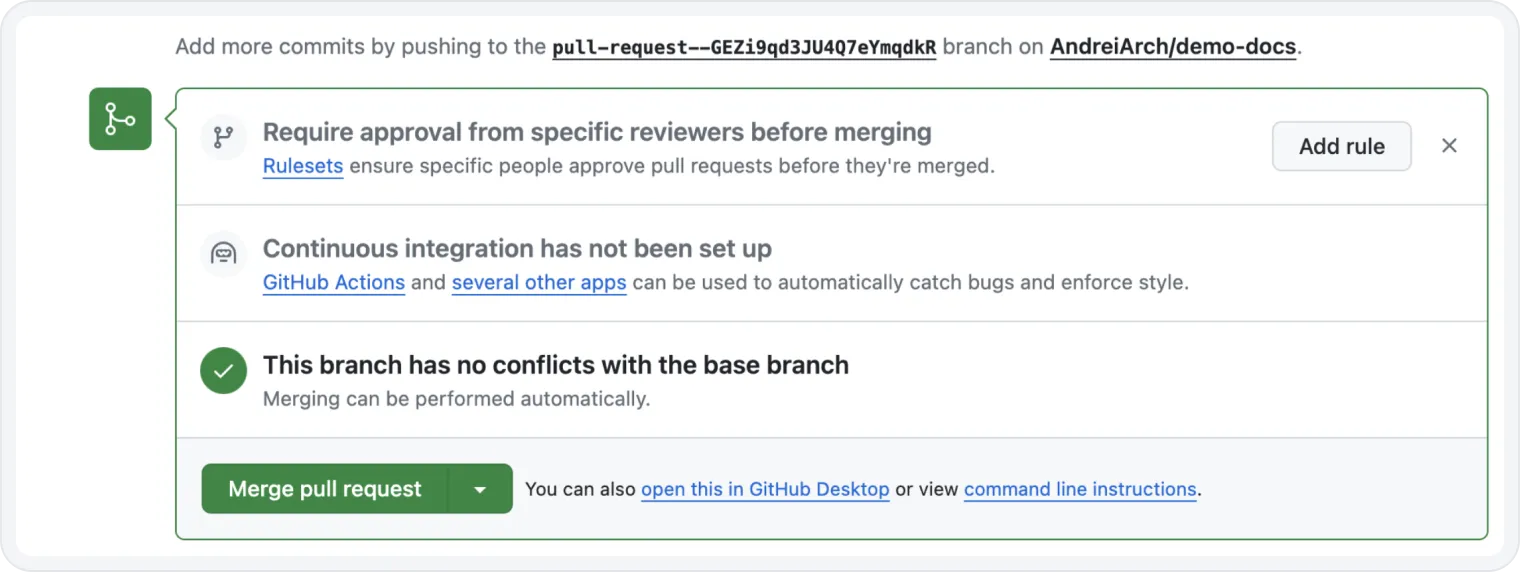
Go back to Archbee. When the merge reaches Archbee, a notification says that the pull request has been merged, and Archbee deletes the drafts that went into it:
If auto-merge is on, the documents update right away. If auto-merge is off, the merged content waits for review, and the documents show the previous content until someone merges it. See Review incoming git changes.
Select GitHub branch 🕎
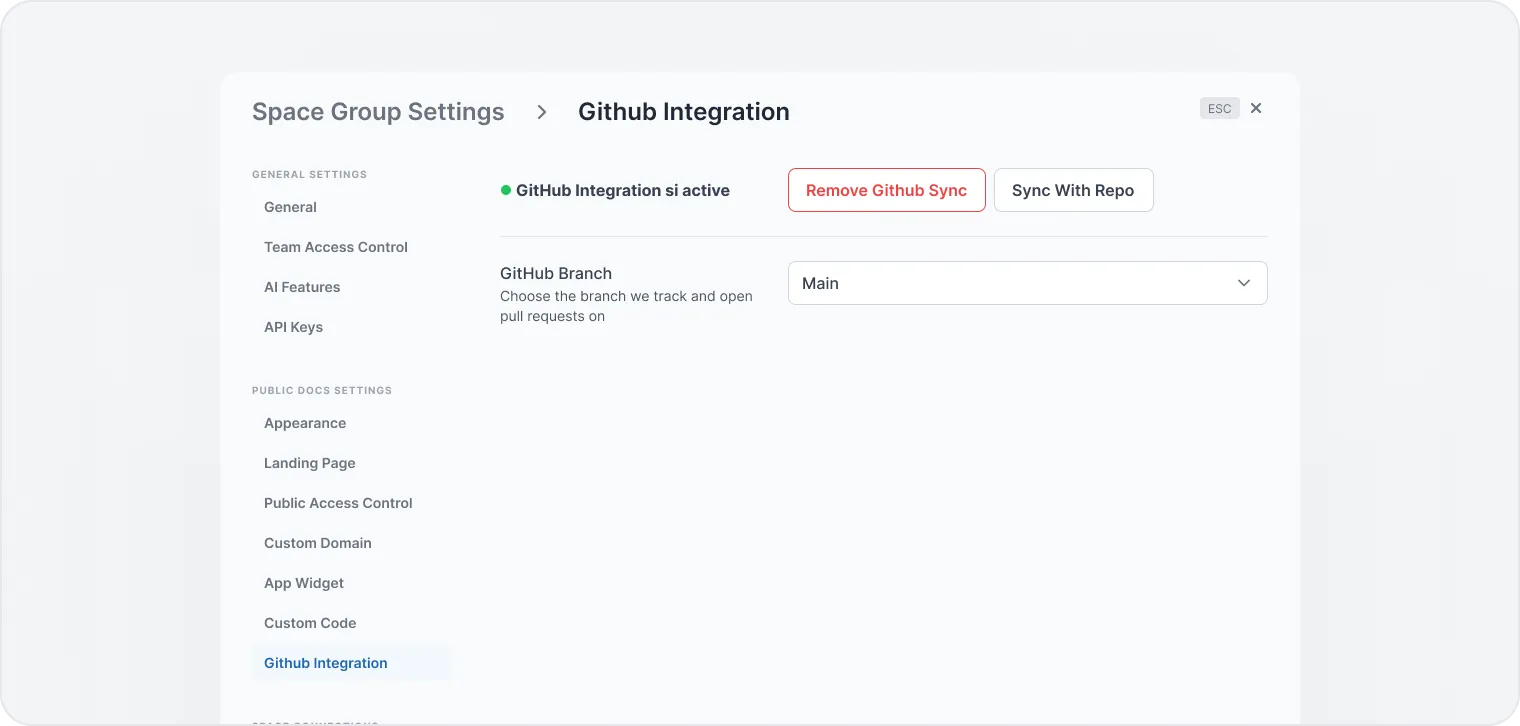
Select the branch Archbee tracks in Space settings > GitHub Integration > Git branch. Archbee also opens its pull requests against that branch. Every commit that lands on the branch starts a sync, whether you push it or merge a pull request. Opening a pull request does not start a sync.
Changing the branch takes publish rights on the space. While auto-merge is off, the content of the new branch waits for review.
To force a sync, go to Space settings > GitHub Integration and click Sync from repo. Archbee asks you to confirm, because the sync overwrites the space with the content of the repository. The sync applies right away, even when auto-merge is off.