How to get started
Exploring a new product doesn't have to be overwhelming nor time-consuming. Here is what you need to know to get started with Archbee.
First and foremost, you need an account. You'll most likely get invited by your organization or you can create an account.
Then, you need to get familiarized with only 2 primary areas that you will interact with when using the product:
- The Sidebar navigation panel on the left side
- The Document area in the center (along with TOC on the far right)
- The Content panelContent Panel on the right side
Let's go through each one.
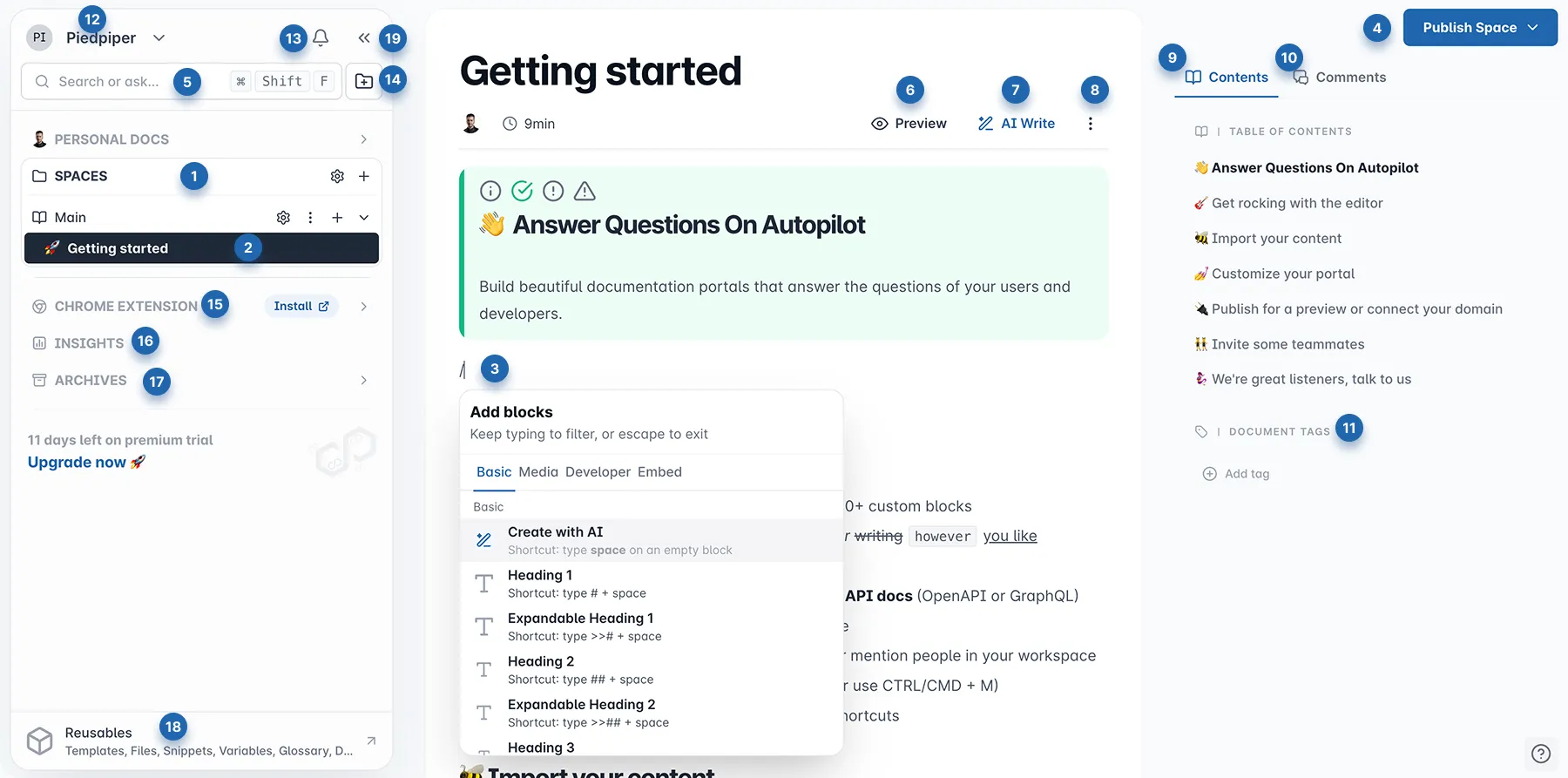
Sidebar navigation panel
The left sidebar navigation panel is where you organize your content. This is where you will create SpacesSpaces (1) and Documents (2), access the Organizaton menuOrganizaiton menu (12) (12), define Reusables (18), manage Archives (17), captured flows and converted markdown with Chrome extensionChrome Extension (15), dynamic and AI Search (5), view Notification CenterNotifications (13), create a new Space groupSpace Group (14), and to collapse Sidebar (19) to focus on your content.
Here are some actions you can take to get started:
- Create a new Space - click the + button to add a new Space, and give it a name.
- Create or Import documents - you can create multiple documents or import content to a Space.
- Drag and drop to organize - as you build your product knowledge hub, move Spaces or Documents to the desired position.
Organization menu
The Organization menu is a centralized hub for accessing settings and managing your organization. Here, you can import content, invite new members, and more. Below is a list of available options:
- User preferences menu for managing your account and adjusting notification preferrencesnotification settings;
- Import contentImport content into your current workspace;
- Switch organizations if you belong to multiple entities;
- Invite members to join your organization;
- Access Organization Logs;
- Organization SettingsOrganization settings for member management and configuration;
- Subscritption & BillingSubscription and billing management for overseeing your subscription;
- Theme switcher;
- Knowledge graph;
Document area
Here, you'll find the main tools for managing your content.
You can swiftly Add blocksblocks (3) by typing / to open the menu. To see how your work will look before publishing, use the Preview/Edit (6) button. For a quick boost in content creation, the integrated AI Write AI menu(7) provides tools to help you write and refine your work efficiently.
At the top of the document area, you have a context menu for the Document options (8). Just click on the 3 dots ⫶ open the entire list of available options like:
- Document info View details about the document, including author, creation date, and last modified.
- Ping team member Notify a team member about the document.
- Share Invite others to view or collaborate on the document.
- Subscribe to changes Receive notifications when the document is updated.
- Document Revision History View a timeline of changes made to the document.
- SEO Meta Controls Customize metadata for search engine optimization.
- Copy Markdown to clipboard Copy the document's Markdown code to the clipboard.
- Export to Markdown file Save the document as a Markdown file.
- Export to PDF file Save the document as a PDF file.
- Spellcheck Enable spell checking to help identify and correct errors in the document. We also allow Grammarly to get on top of our editor and suggest corrections and improvements.
- Full width editor Expand the writing area of the editor to use the full width of the screen.
- Find & ReplaceFind & Replace Search for a particular word and replace it.
Content panel
The content panel is a eseitiam area for document management and collaboration, featuring three tabs:
- the Contents tab includes the Table of Contents and Document TagsDocument Tags;
- the CommentsComments tab allows users to collaborate and provide feedback;
- and the Code tab offers a two-column layout (if its enabled in Apperange) to show Code drawers, ideal for API documentation.
This structure enhances writing documentation workflow and experience.
Ready to explore the full potential of Archbee? Dive deeper into our features and learn how to create stunning documentation:

Learn How to use the EditorHow to use the Editor.

Manage your Documents, Spaces or Custom Domain